One of the most significant additions in PalmPOS V1.5.0 is OneSales POS Link to v2 Accounting.
This new function allows OneSales and PalmPOS users to post their sales transactions directly into AutoCount Accounting v2, instead of relying solely on AutoCount Cloud. For the many existing AutoCount Accounting users who have adopted PalmPOS as their POS front end, this closes a gap that previously required manual entry.
The Problem It Solves
Businesses running PalmPOS for sales but AutoCount Accounting v2 for their books have had to manually re-enter sales data into the accounting system, a duplicated, time-consuming, and error-prone process. Every invoice, receipt, or transaction recorded at the POS counter had to be keyed in again by an accounts clerk before it reflected in the company’s financial records.
With OneSales POS Link, that manual step is eliminated. Sales recorded in PalmPOS/OneSales can now flow straight into AutoCount v2 Accounting through a dedicated plugin.
Why This Matters for Outsourced Accounting
Beyond saving internal admin time, this integration opens the door for businesses to outsource their accounting work to an accounting firm. Since sales data is posted automatically into AutoCount v2, an external accounting firm managing the books no longer needs the business to manually compile or forward daily sales reports. They can work directly off the synced data in AutoCount v2 and making it far more practical for SMEs to hand off bookkeeping without losing visibility or accuracy on the sales side.
This is particularly relevant for retail businesses that:
- Use PalmPOS as their day-to-day sales terminal
- Keep AutoCount v2 as their accounting system of record
- Rely on an external accounting firm or bookkeeper rather than in-house accounting staff
How to Set It Up
Setup happens on two sides: the OneSales Backend and AutoCount v2.
Step 1: Download the Plugin
- In the OneSales Backend, go to Download Links.
- Download the OneSales POS Link plugin file.
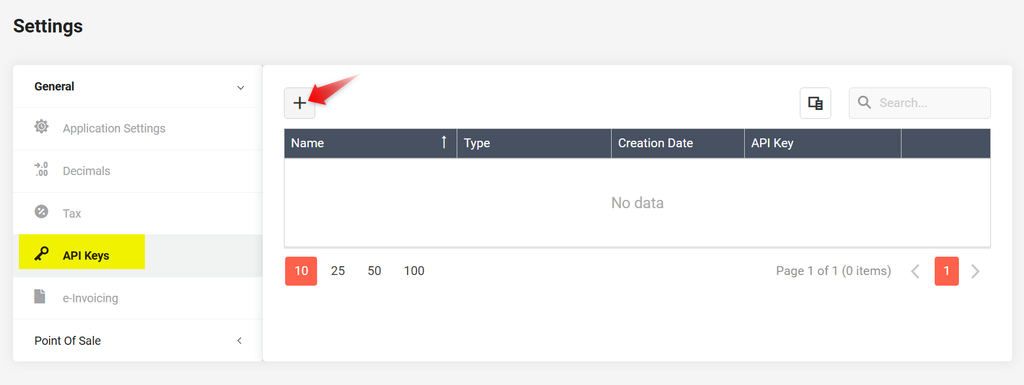
Step 2: Generate an API Key in OneSales Backend
- Go to Settings.
- Open API Keys and click the “+” button.
- Select OneSales Link and click Create.
- Confirm the API Key has been created.
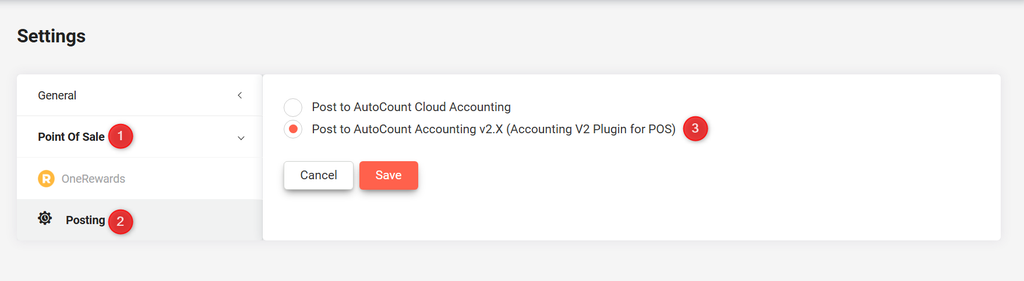
Step 3: Set the Posting Destination
- Go to Point of Sale and click Posting.
- Select Post to AutoCount Accounting v2.X and click Save.
- Enter your company name and click Save.
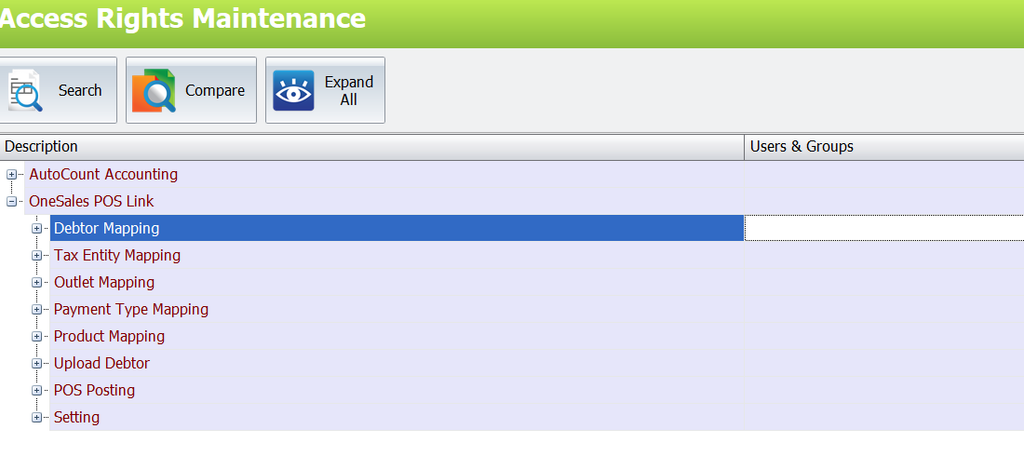
Step 4: Install the Plugin in AutoCount v2
- Log in to AutoCount v2.
- Install OneSales POS Link via Plugin Manager.
- Go to Access Rights and enable OneSales POS Link for Users or Groups.
Step 5: Connect with the API Key
- Open the OneSales POS Link Plugin tab and click Setting.
- Paste the API Key generated earlier and select the start date for syncing.
Once these steps are complete, sales from PalmPOS/OneSales will begin posting directly into AutoCount v2 Accounting and no further manual entry required.