Reconciling bank statements with system records has always been one of the more repetitive tasks during month-end closing. It often involves checking transactions one by one, finding the corresponding entries in the system, and combining multiple cheques or payments that were banked in together. The new Auto Bank Reconciliation function in AutoCount Accounting v2 is designed to take over the repetitive part of that work while still giving you full control over the tricky cases.
How it works
- Import your bank statement — the function currently accepts both PDF and CSV bank statement formats, so you don’t need to manually retype figures from a printed or downloaded statement.
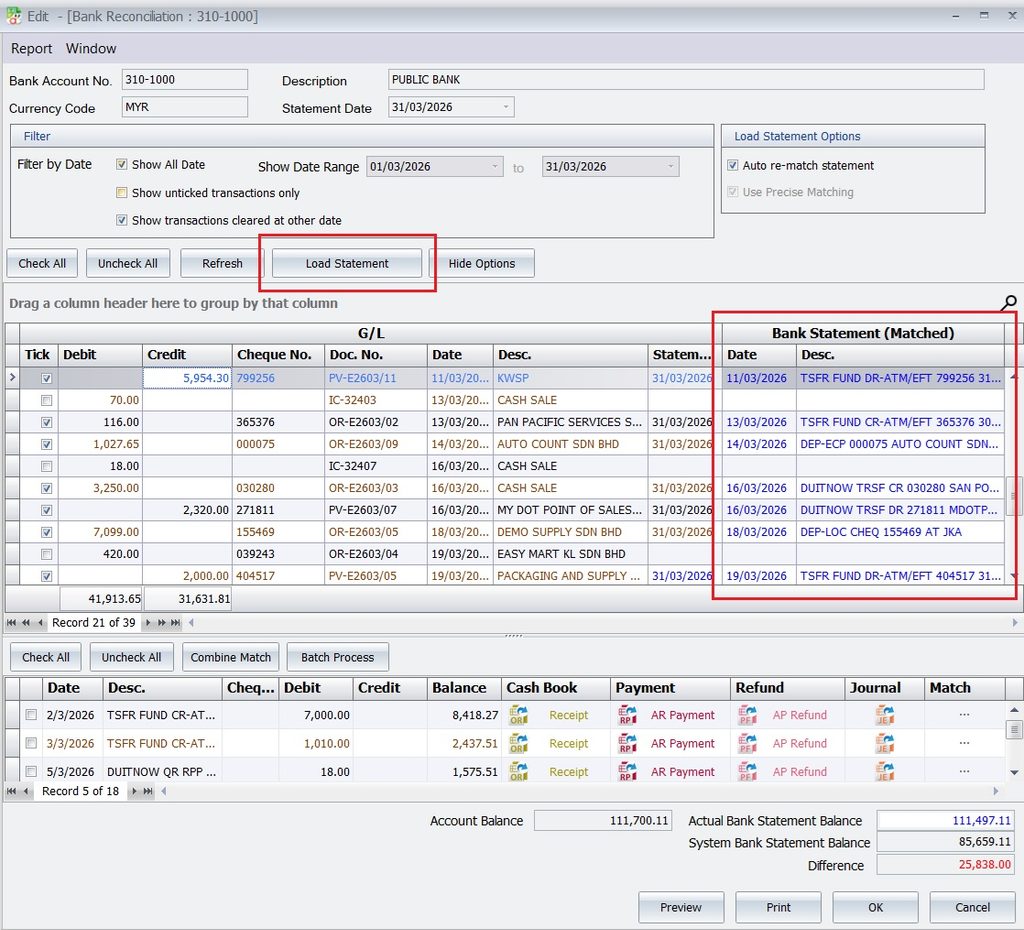
- Automatic matching — once imported, the system automatically compares statement transactions against your ledger entries and re-matches them where it finds a clear match.
- Matched vs. unmatched view — the screen is split for clarity:
- Matched transactions appear on the right side, showing the bank statement line paired with its corresponding system document.
- Unmatched/unknown transactions that AutoCount Accounting v2 can’t confidently match (e.g. a rounding difference, a combined deposit, or a transaction not yet entered into the system) are listed at the bottom, so they stand out and can be review.
Handling the exceptions
For the transactions that don’t auto-match, you’re not left to figure it out manually from scratch:
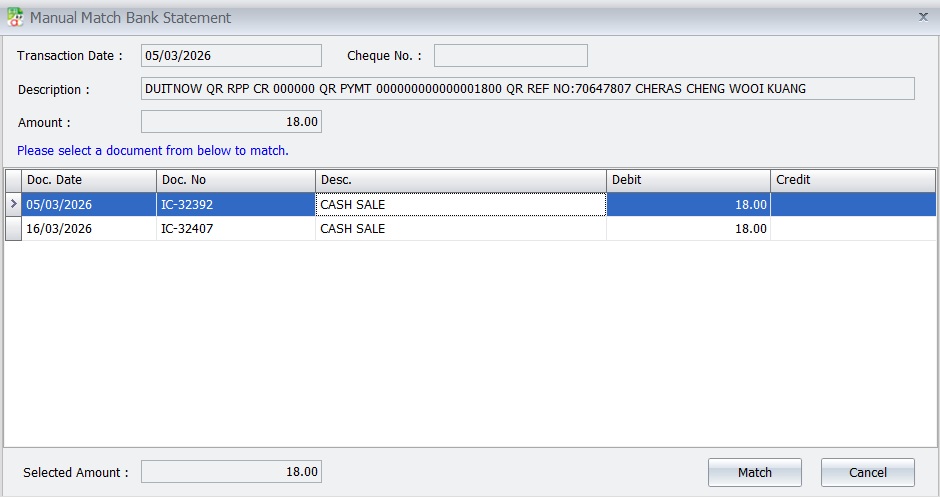
- Manual Match — click the three-dot menu on a bank statement transaction, choose a document from the list, and match it yourself. Useful when the system can’t determine the match on its own (e.g. similar amounts, unclear descriptions).
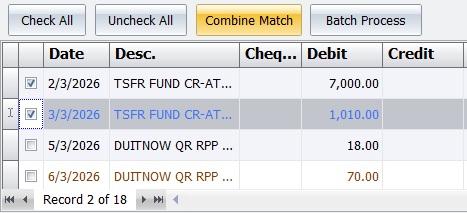
- Combine Match — when several transactions in the bank statement correspond to a single document in the system, you can combine them into one match. A common example: one Official Receipt in the system against several partial payments shown separately on the bank statement.
Why it matters
- Saves time — auto-matching clears the straightforward transactions instantly, so you only spend time on the exceptions rather than checking every single line.
- Reduces errors — automated matching cuts down on the risk of manually ticking the wrong entry or missing a transaction.
- Keeps flexibility — you’re not forced into an all-or-nothing automated process. You can continue reconciling in the familiar way and simply use the auto-match and manual/combine match tools where they help, blending automation with your existing workflow.
- Improves visibility — separating matched and unmatched transactions makes it immediately clear what still needs your attention, instead of scrolling through a long combined list.
The rest of the process stays the same
Auto Bank Reconciliation is an enhancement layered onto the existing Bank Reconciliation module — it doesn’t replace the core process. Key points to keep in mind:
- Reconciliation is done per bank account, under G/L > Bank Reconciliation, by adding a reconciliation entry against a defined Bank Statement Date.
- If you’re setting up reconciliation for the first time on an existing account book, you’ll need to record any uncleared transactions from prior years once, so the system has a starting point.
- The reconciliation screen compares the Actual Bank Statement Balance (the closing balance printed on your statement) against the System Bank Statement Balance (calculated from your ticked/matched entries) — the goal is to get the Difference to zero.
- You can filter the list by date range, show only unticked (unreconciled) items, or show items reconciled on other dates, to make review easier.
- Bank Slip is still available for combining multiple cheques or receipts into a single line for reconciliation purposes (this doesn’t affect the underlying ledger entries) — useful when several receipts were banked in together as one lump-sum deposit.
- Once reconciled, you can preview and print the Bank Reconciliation Statement in one of two formats (starting from bank balance or starting from book balance), and generate the Bank Reconciled Transaction Report.
In short: import your statement, let the system auto-match what it can, resolve the leftover items with manual or combined matching, and finish the reconciliation the same way you always have just with far fewer transactions left to check by hand.