AutoCount PalmPOS has rolled out Version 1.5.0, bringing new functions and interface enhancements to make everyday retail operations smoother. Here’s a full rundown of what’s changed.
1. Tablet Mode
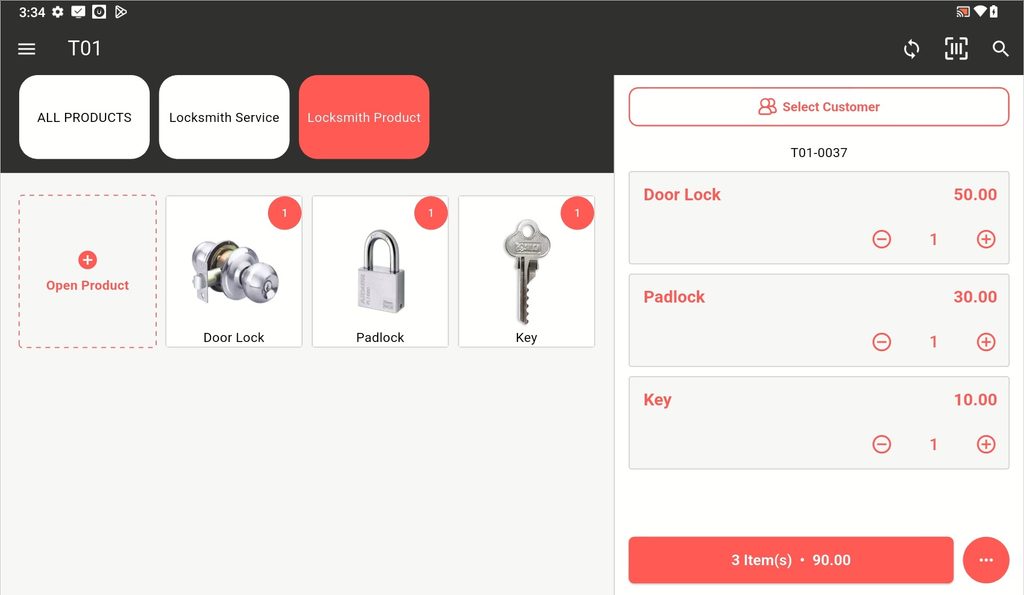
PalmPOS now automatically detects when it’s running on a tablet and switches to a horizontal (landscape) layout. The interface is optimized for the wider screen rather than simply stretching the phone layout, giving better use of space for product grids and cart panels.
2. Product Multipack
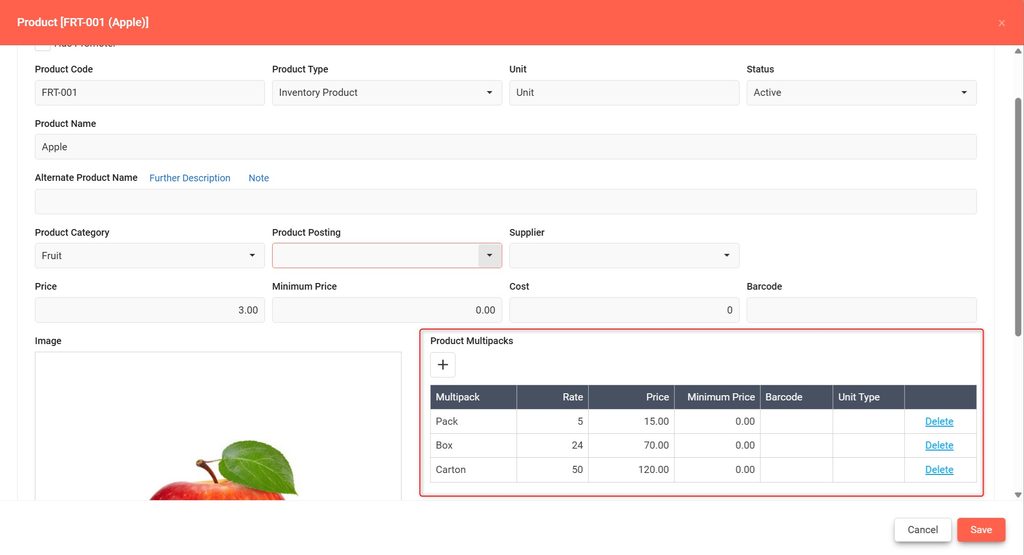
Sell the same product under different units, each with its own price — for example, a beverage sold individually, by a 6-pack, or by carton, all linked to one master product.
- Configured on the backend by admins.
- At checkout, staff select the item and choose the right unit from a unit selector.
- Each unit can carry its own price, avoiding duplicate product listings.
3. Product Bundle
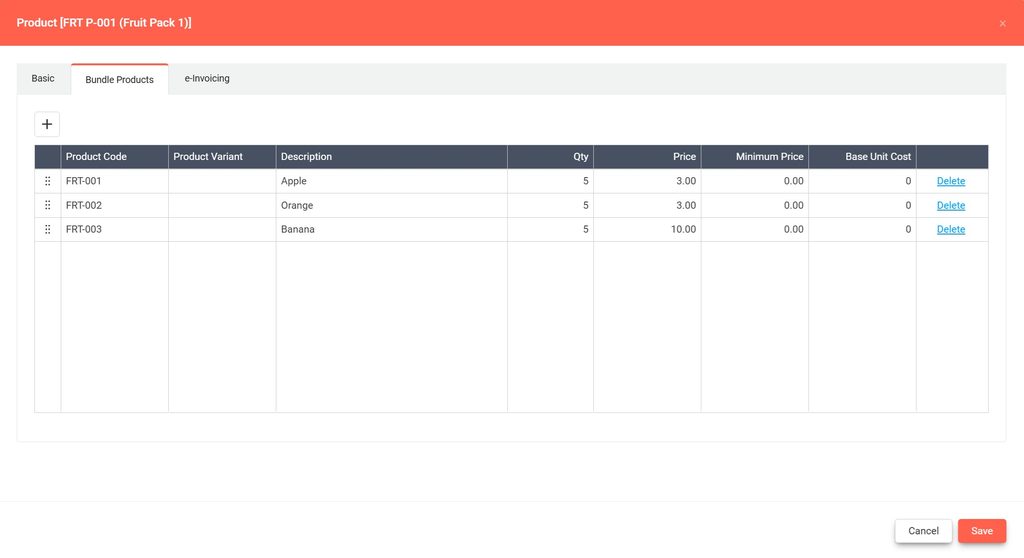
Group multiple different items together and sell them as one package like package sets, gift sets, or promotional bundles.
- Bundles are set up from the backend.
- Once configured, the bundle appears as a single sellable item at checkout, rather than each item separately.
- Similar to Item Package Module in AutoCount Accounting.
4. Print Hold Bill
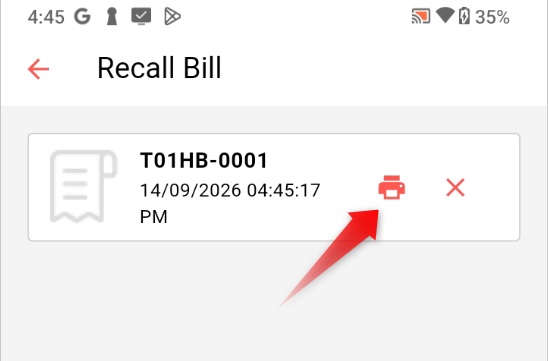
Held/parked transactions can now be printed directly from the Recall Bill screen.
- Staff can hold a bill mid-transaction (e.g., customer steps away, or an order is being prepared).
- The held transaction can then be printed as a reference slip.
5. Receipt Redesign
Both 58mm and 80mm receipt formats have been visually refreshed for a cleaner, tidier layout.
- The 80mm receipt also gets a larger font size for better readability.
6. Enhanced Flow for Preview & Share
The post-payment flow can be preview for faster, more flexible receipt handling.
- A Preview button lets staff switch between Receipt and A4 formats on the fly.
- A Print button allows reprinting when needed.
- A Share button sends the transaction directly as a PDF.
7. Setup Wizard Redesign
Onboarding has been restructured into a clearer, guided flow, walking users through:
- Language selection
- Company Profile setup
- e-Invoice settings
- Printing settings
- Product template selection
8. External Barcode Scanner Listener
PalmPOS now supports external barcode scanners over both USB and Bluetooth.
- When a scanned barcode matches an item’s barcode field, the product is automatically added to the cart — no manual search needed.
9. OneSales POS Link to v2 Accounting
Sales from PalmPOS can now be posted from the OneSales Backend directly into AutoCount v2 Accounting. This requires a plugin available through the OneSales Backend – see the OneSales POS Link Setup guide for info.