This release focuses on e-Invoice credit note imports, e-Invoice submission monitoring and statement email handling. You can now import AR Credit Notes with their Classification and e-Invoice settings, see totals at a glance in the e-Invoice Submission Status, and view and bulk-import Statement Email addresses for debtors and creditors. There is also a new option to replace the default SQL Server SA password, plus a range of smaller improvements.
Highlights in this version:
- Import AR Credit Note from Excel supports the Classification column
- Import AR Credit Note supports the Submit e-Invoice and Consolidate e-Invoice columns
- Summary Footer in e-Invoice Submission Status
- New “No Submit e-Invoice” status in e-Invoice Submission Summary
- Statement Email column in the Debtor/Creditor grid
- Import Debtor and Creditor supports Statement Email
- Item Description in Reorder Advice’s Generate Purchase Order screen
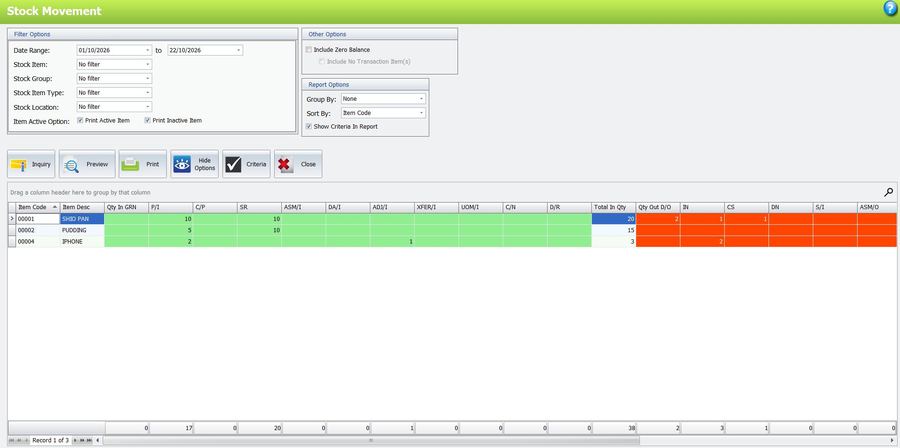
- Coloured In and Out columns in the Stock Movement Report
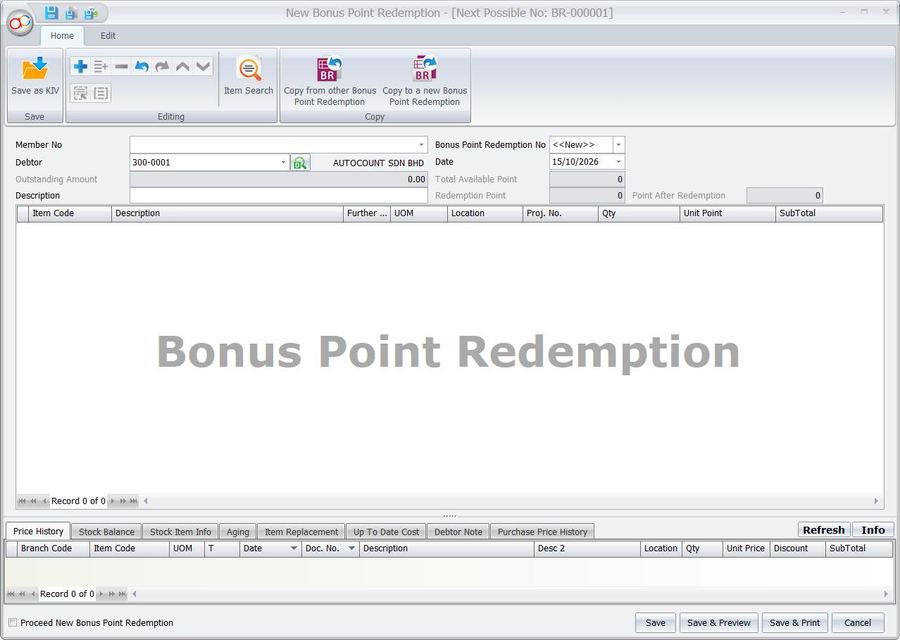
- Debtor Company Name shown in Bonus Point Redemption
- New option to change the default SA password
- Other enhancements
Important: This version upgrades your database version to 2.2.99 and requires AutoCount Server version 2.2.13.16 or above.
1. Import AR Credit Note from Excel Now Supports Classification
The Import from Excel function for AR Credit Note (ARCN) now accepts a Classification column, so you can import credit notes together with their classification codes instead of editing each one individually.
Steps:
- Fill in the Classification column in the ARCN Excel template.
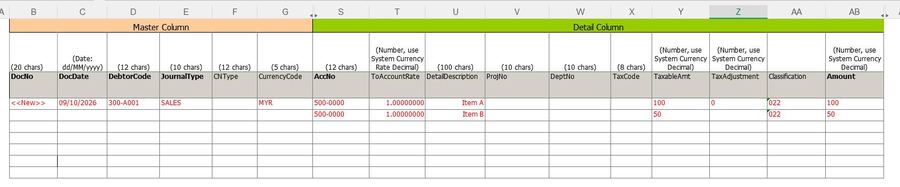
- Copy the data and paste it at Import From Excel > Import from AR Credit Note.
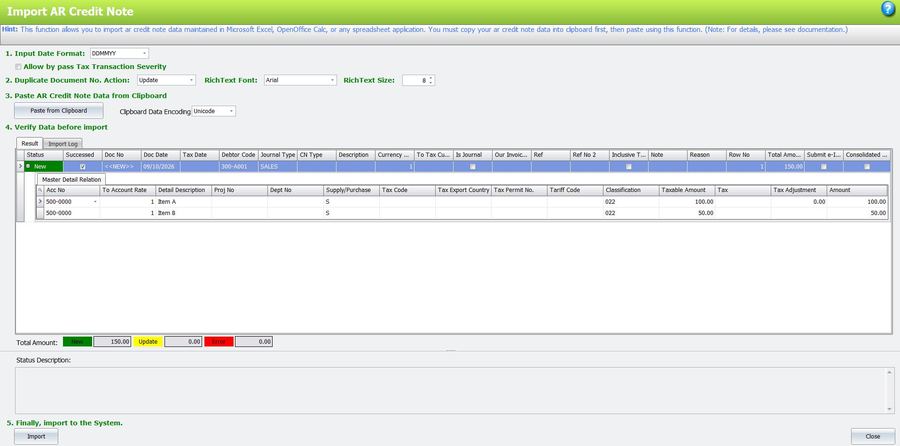
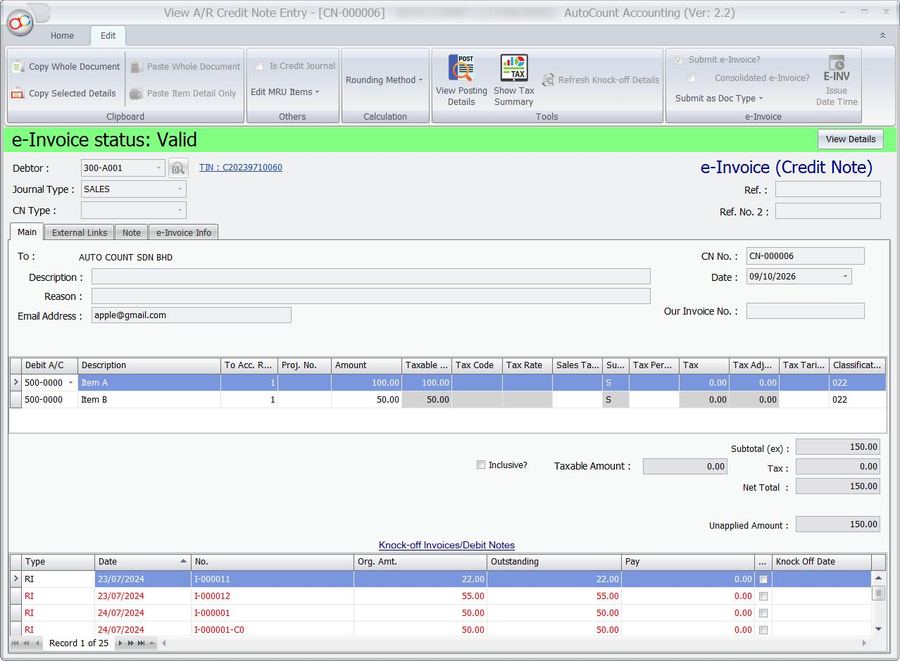
- Click Import. Once the import succeeds, the classification appears on each detail line of the credit note.
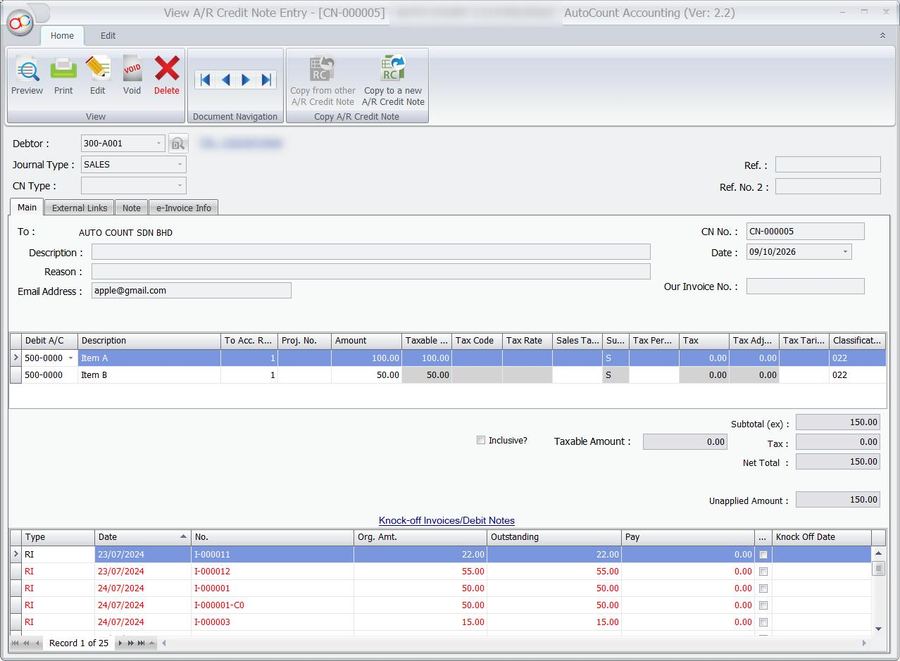
2. Import AR Credit Note Supports Submit e-Invoice and Consolidate e-Invoice
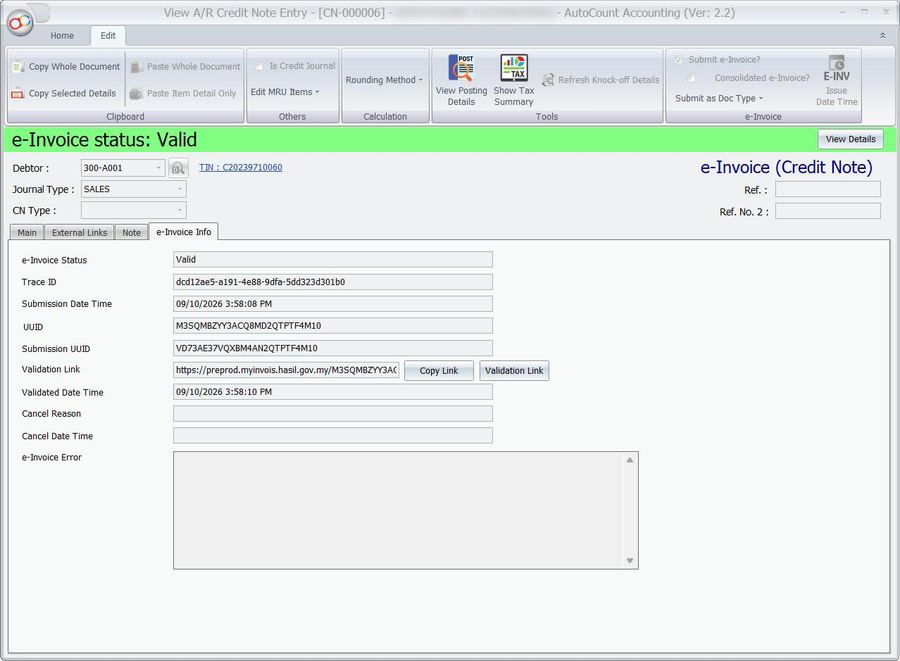
Since AR Credit Notes can be submitted as e-Invoices, the Excel import now supports two new columns, Submit e-Invoice and Consolidate e-Invoice, so imported credit notes are ready for e-Invoice submission.
Steps:
- Fill in the Submit e-Invoice and Consolidate e-Invoice columns (T or F) in the ARCN Excel template.
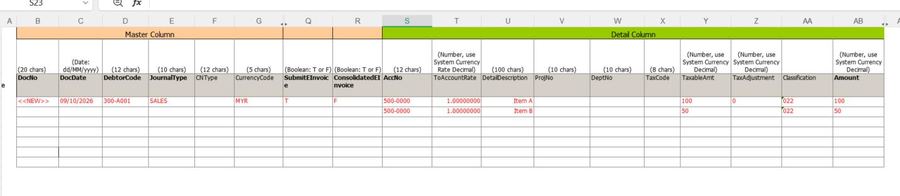
- Copy the data and paste it at Import From Excel > Import from AR Credit Note.
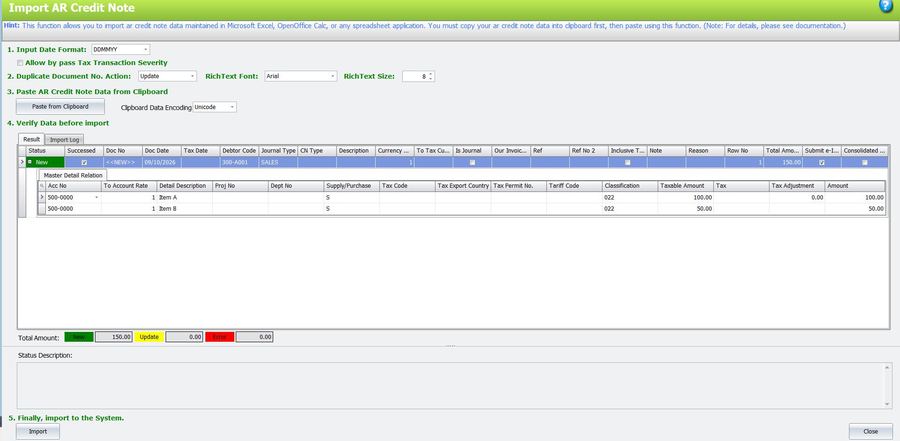
- After a successful import, the system checks the Submit e-Invoice option. If it is set to T, the system verifies that the debtor has a TIN maintained under AR > Debtor Maintenance.
3. Summary Footer in e-Invoice Submission Status
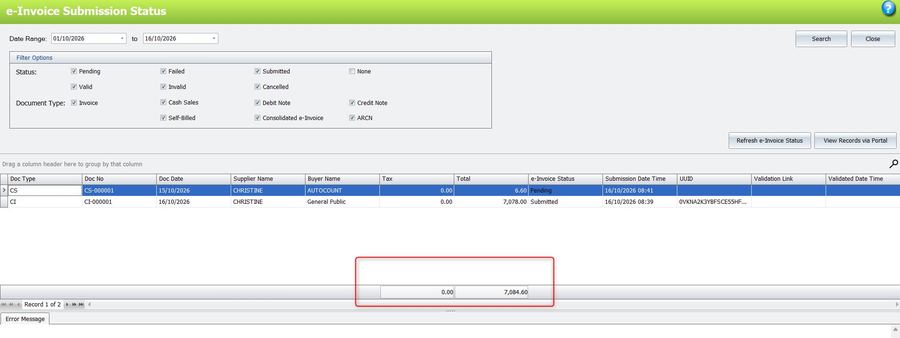
The e-Invoice Submission Status screen now has a Summary Footer that totals the e-Invoice transactions matching your selected filters and date range, so you no longer need to count records manually.
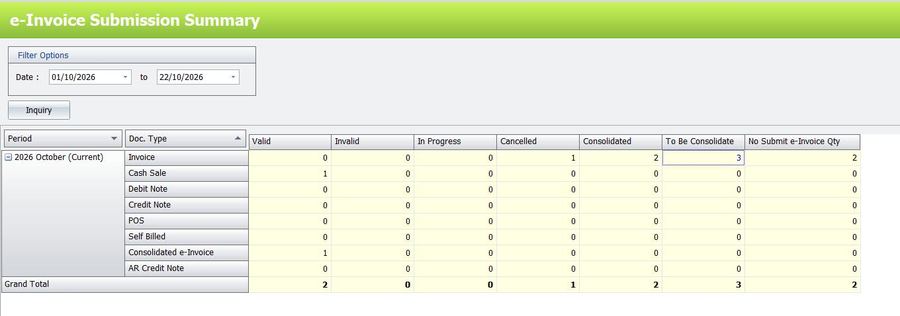
4. New “No Submit e-Invoice” Status in e-Invoice Submission Summary
A new No Submit e-Invoice Qty column in the e-Invoice Submission Summary shows, by document type, how many transactions are not set to be submitted as e-Invoices. You can then trace these in the transaction listing and update their Submit e-Invoice setting if needed.
How transactions are categorised:
- Valid: the e-Invoice status is Valid.
- Invalid: the e-Invoice status is Invalid.
- In Progress: the e-Invoice status is Submitted.
- Cancelled: the e-Invoice status is Cancelled.
- Consolidated: the transaction was successfully submitted as part of a Consolidated e-Invoice.
- To Be Consolidated: the transaction has Consolidate e-Invoice ticked.
- No Submit e-Invoice Qty: the transaction does not have Submit e-Invoice ticked.
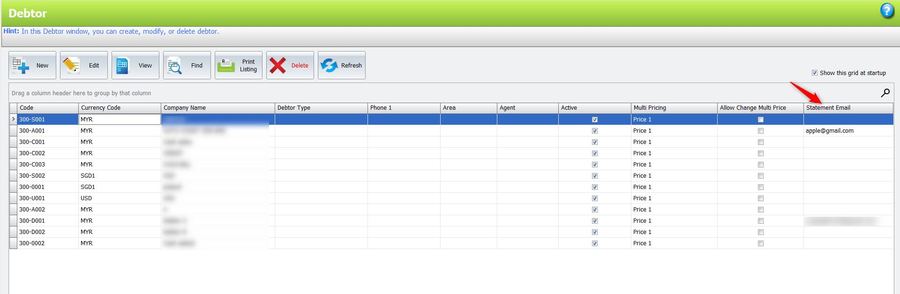
5. Statement Email Column in the Debtor/Creditor Grid
The Debtor and Creditor grids now include a Statement Email column, so you can see at a glance which email address each account’s statements are sent to.
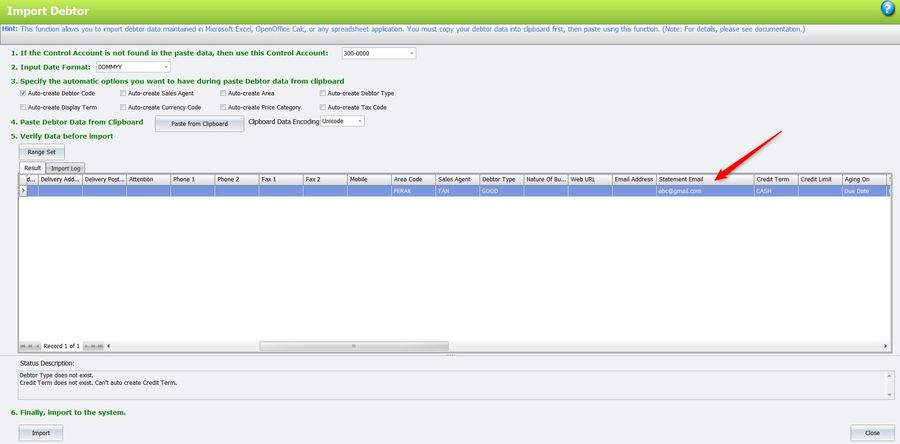
6. Import Debtor and Creditor Supports Statement Email
Import Debtor and Import Creditor from Excel now support the Statement Email field, letting you load statement email addresses in bulk instead of updating each account one by one.
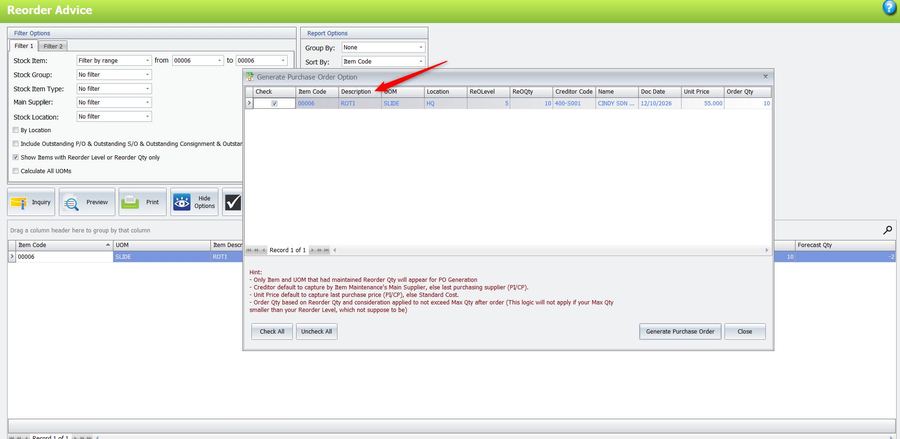
7. Item Description in Reorder Advice’s Generate Purchase Order Screen
The Generate Purchase Order screen in Reorder Advice now shows the Item Description, making it easier to confirm the items before generating the purchase order.
8. Coloured In and Out Columns in the Stock Movement Report
The In and Out columns in the Stock Movement Report now have different background colours: green for stock in and red for stock out, so movements are easier to read.
9. Debtor Company Name Shown in Bonus Point Redemption
When you select a debtor in Bonus Point Redemption, the Debtor Company Name now appears beside the Debtor Code, so you can confirm the right customer when creating a redemption or checking points.
10. New Option to Change the Default SA Password
To improve database security, you can now replace the default AutoCount SA password with your own. The change is made in two parts: first on the server PC, then on every workstation PC that connects to it.
Note: This option only appears when the system detects that SQL Server is still using the AutoCount default SA password. It also works with SQL instance names other than A2006. Make sure all users have logged out of AutoCount Accounting before changing the password.
Part A: Change the SA Password on the Server PC
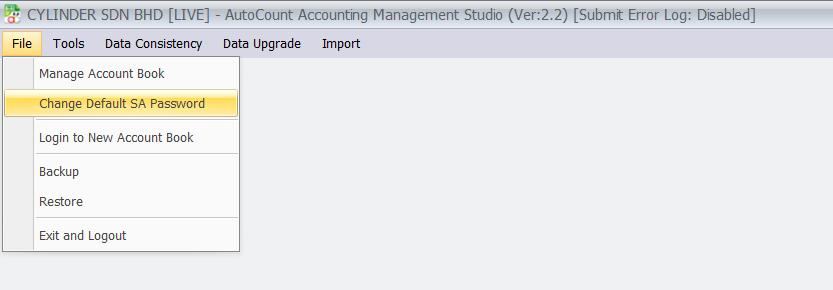
- Go to AutoCount Accounting Management Studio > File > Change Default SA Password.
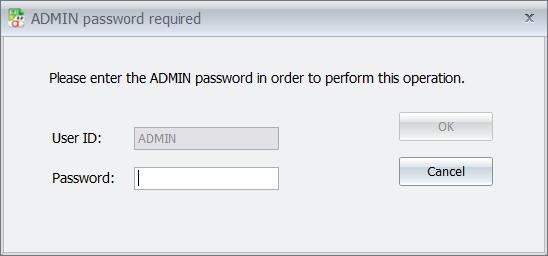
- Enter the ADMIN password to confirm.
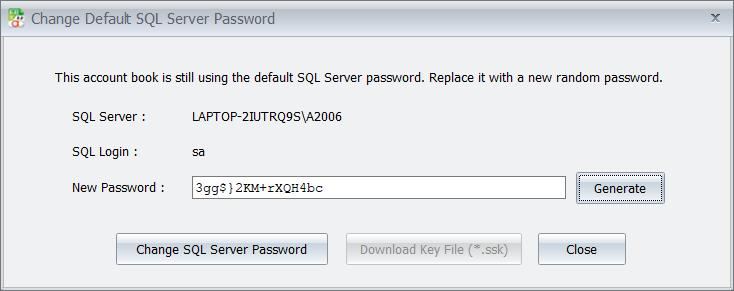
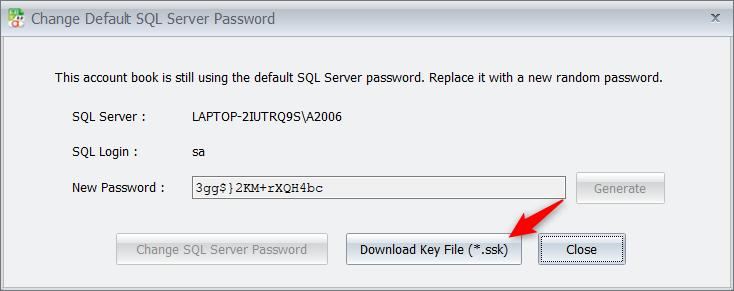
- Click Generate to create a strong password, or type your own strong password, then click Change SQL Server Password.
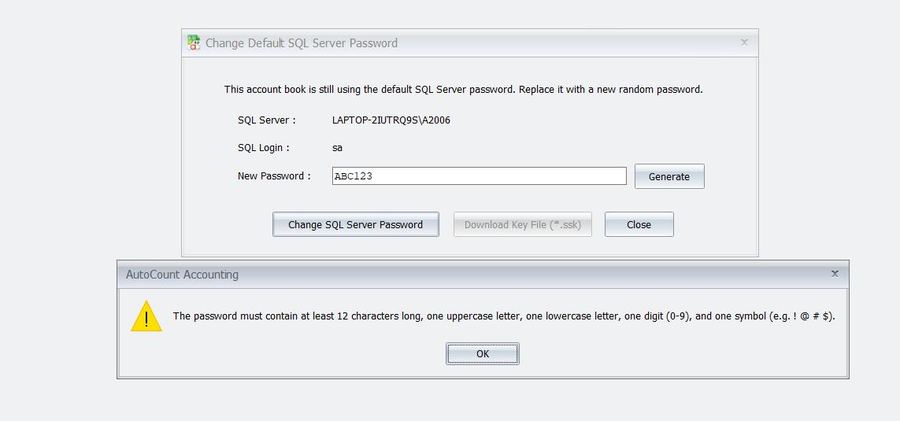
- If the password is too weak, a warning appears. The password must be at least 12 characters and include an uppercase letter, a lowercase letter, a digit and a symbol. Enter a stronger password to continue.
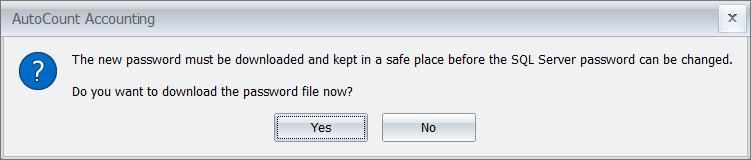
- You will be reminded to download the new password file and keep it safe before the change can go ahead. Click Yes to download it.
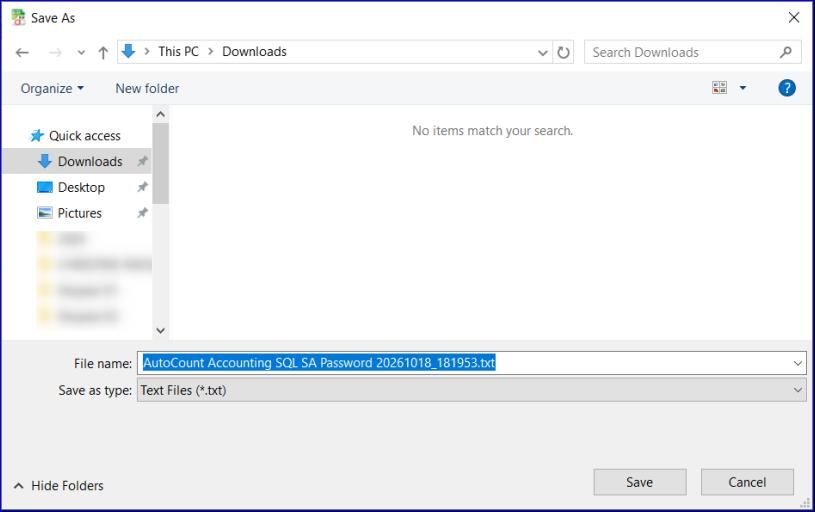
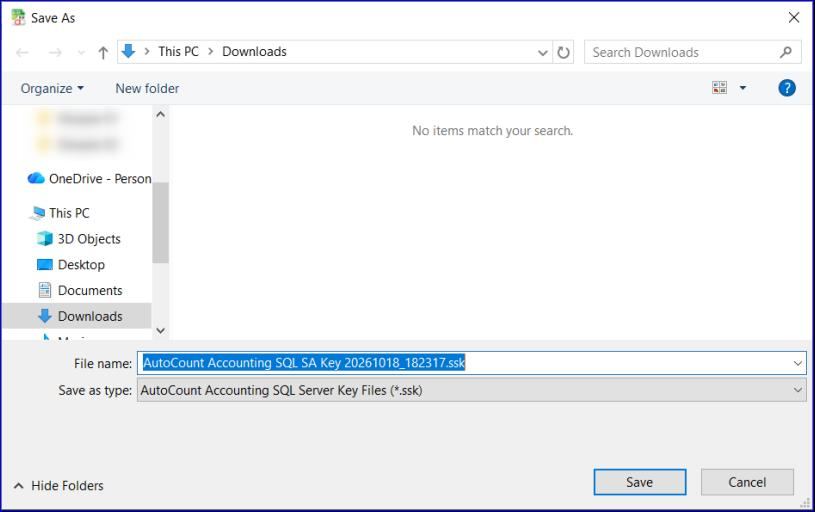
- Save the password file in a safe location. If the password file cannot be downloaded, the SA password change has failed.

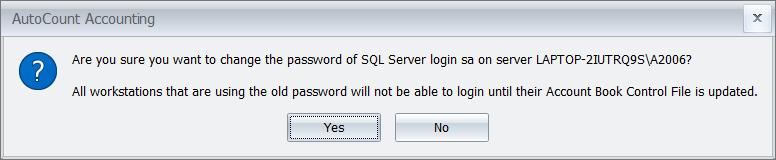
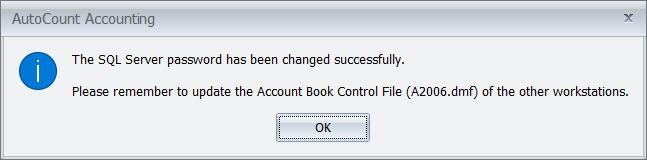
- Click Yes on the confirmation message to change the SA password. Once it succeeds, you will be reminded to update the Account Book Control File (A2006.dmf) on the other workstations.
- Click Download Key File (*.ssk) and save the key file. Copy this file to each workstation PC, as you will need it in Part B.

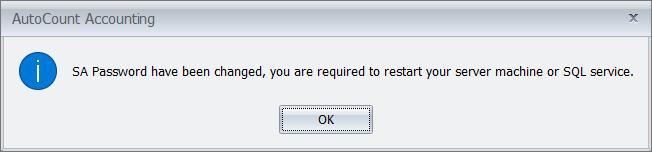
- Restart the SQL service when prompted. Open Services, find the SQL Server service, right-click it and select Restart.
Part B: Update the SA Password on Each Workstation PC
After the server’s SA password is changed, every workstation must update its SA password from the AutoCount login screen.
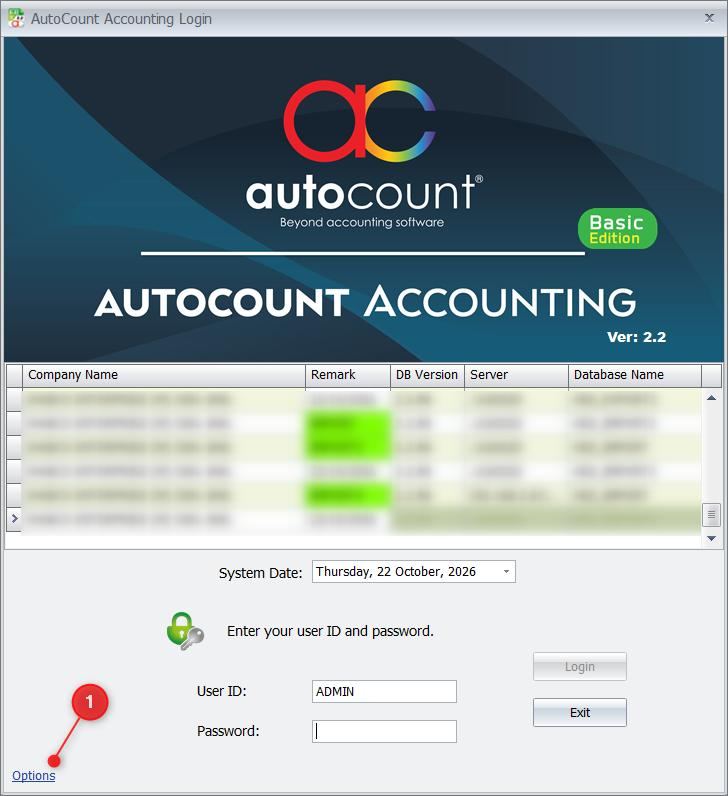
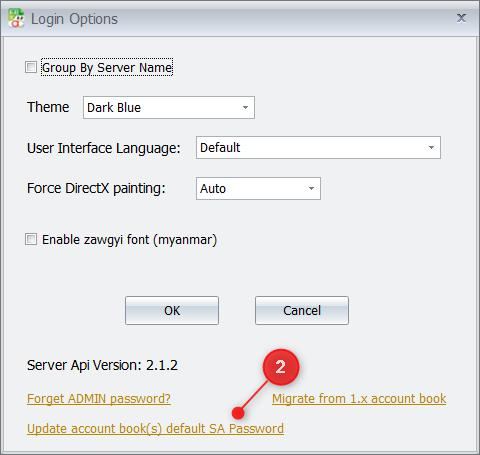
- On the workstation, open the login screen, click Options, then click Update account book(s) default SA Password. This updates the SA password for all account books linked to that server and SQL instance.
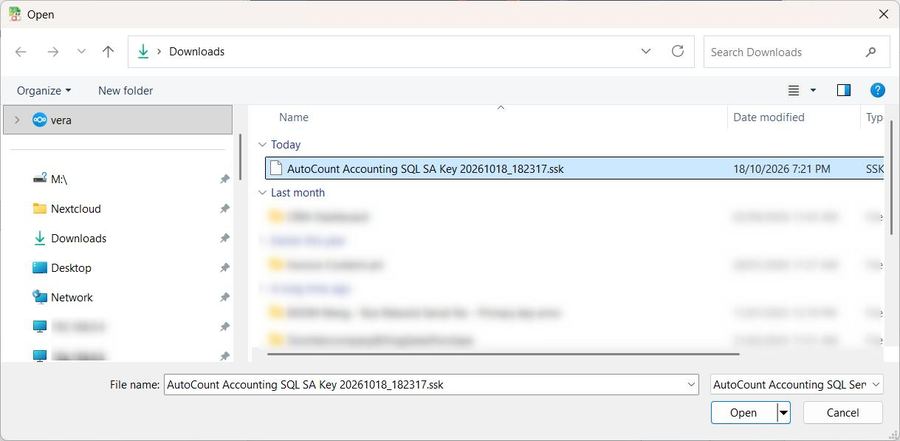
- Select the .ssk key file copied from the server PC.
- When the update succeeds, a message confirms that the Account Book Control File (A2006.dmf) has been updated and how many account books are now using the new password.

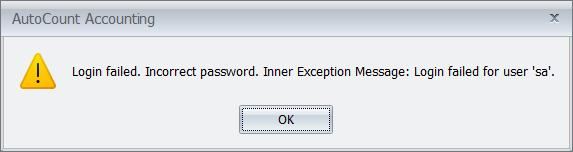
Important: If a workstation has not been updated, users on it cannot log in and will see the error “Login failed. Incorrect password. Inner Exception Message: Login failed for user ‘sa’.”
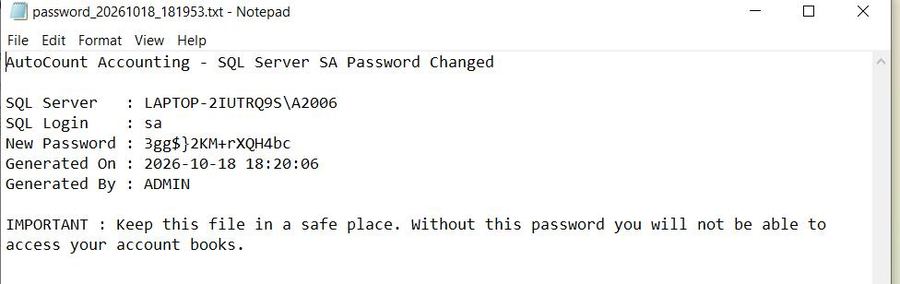
If You Forget to Save the SA Password File
You can retrieve the password and key files from this folder on the server PC:
\My AutoCount\SQL Change Default SA Log

11. Other Enhancements
- Print Bar Code supports batch dates: displays the Manufactured Date and Expiry Date of item batches.
- “Bank Charge Proj No” in Cash Book Report Design: the field can now be added to your Cash Book reports.
- “Edit Unrealized Gain Loss” access right removed: it is no longer tied to any function.
- Audit Trail for decimal changes: changes to decimal settings are now recorded.
- Detail Description 2 in Instant Info and Stock Item Inquiry Price History.
- Stock Item Inquiry shows Real Cost.
- “Filter by Current User Location” in Stock Balance by Location.
- Purchase Return Detail Listing includes Supplier Invoice.
- Stock Assembly and Disassembly reports include the Item Analysis Code for finished goods: applies to Print Stock Assembly Order, Assembly Detail Listing and Disassembly Detail Listing.
- Markup% column in the Item Command Form.
- Stock Card shows Standard Cost.
- Management Studio no longer opens duplicate forms.
- Purchase Return supports CN Type.
- “No Submit e-Invoice” status in e-Invoice Submission Summary: see section 4 above.
- Longer download timeout for the V2 Installer: installs and upgrades are less likely to fail on slow connections.
- API for manually creating a Consolidated e-Invoice: external systems can now generate Consolidated e-Invoices without the AutoCount interface.
Singapore (InvoiceNow) enhancements:
- New FOC InvoiceNow Edition.
- Submission status and error messages are shown at the top of the document view.
- Mandatory fields are pre-validated when saving a transaction for a debtor with a Business Unit.
- InvoiceNow Settings handles IRAS connection failures more gracefully.
- Vendor ID can be maintained at debtor level.
- Centralised maintenance of the Business Unit list, including updating to the latest codes.
- DocDate can no longer be edited after a successful IRAS submission.