AutoCount HRMS lets employees request loans and salary advances through Employee Self Service. Payroll users can review requests, arrange payment and manage deductions through payroll. This guide explains the difference between the two options and outlines the main steps.
Loan or salary advance?
- Loan: A set amount repaid through monthly payroll instalments. The loan type determines the maximum amount and repayment period.
- Salary advance: Part of an employee’s salary paid earlier and deducted in one selected payroll month. Requests are limited to 50% of monthly salary.
Set up a loan type
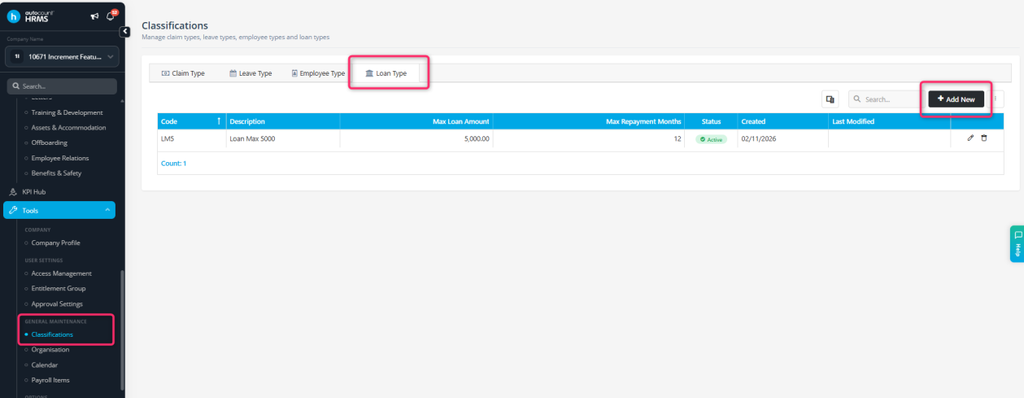
A payroll user sets up loan types before employees can apply. Go to Tools > Classifications > Loan Type and select Add New.
Enter a required code and add a description employees can recognize. Set the maximum loan amount and maximum repayment months, then keep the type active so employees can select it.
How employees request a loan
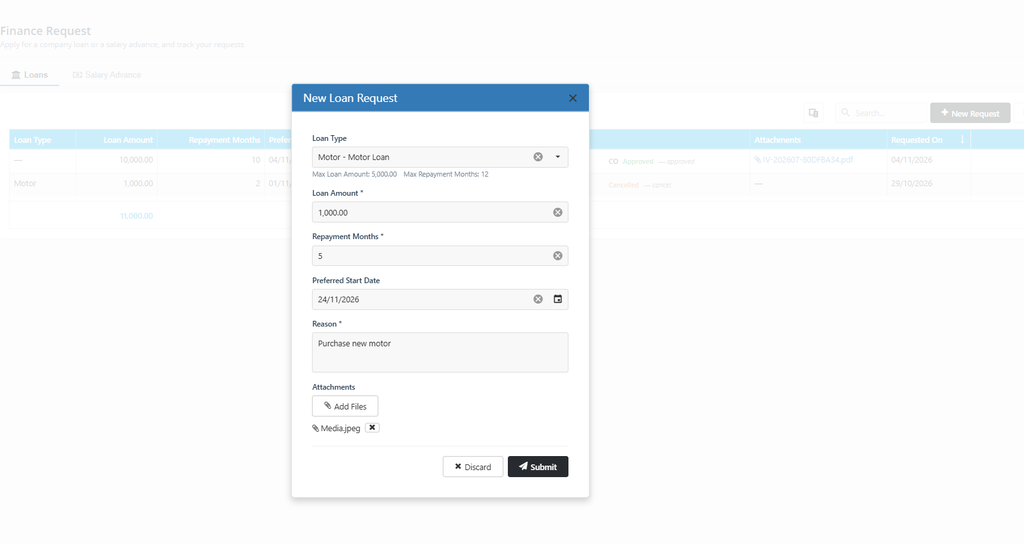
- Go to Employee Finance > Finance Request > Loans and select New Request.
- Select a loan type and enter the requested amount and repayment period.
- Choose a preferred repayment start date and enter a reason. Supporting files are optional.
- Review the request and select Submit.
An employee cannot submit another loan request while one is awaiting approval.
Review and pay an approved loan
A payroll user with access to the employee’s entitlement group or loan module can review a loan request; a separate approval workflow is not required. Open Employee Finance > Loan & Advance > Loans, select Review, check the details, add remarks if needed, then approve or reject the request.
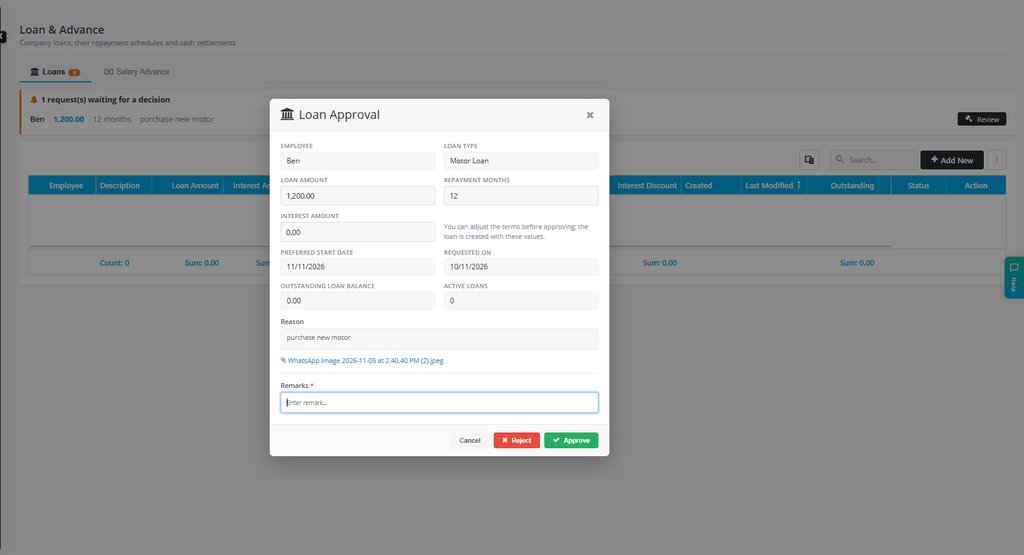
After approval, the payroll user can generate a bank payment file from Loan & Advance > Loans. Select the company’s bank and generate the file, then upload it to the company’s online banking service. Loan instalments are deducted from salary each month until the loan is repaid.
Record a cash loan repayment
If an employee repays some or all of a loan in cash, record the payment so payroll deducts only the remaining amount. In Loan & Advance > Loans, open the row’s action menu and select Cash Settlement. Choose whether the employee is paying full instalments for selected months or entering a specific amount.
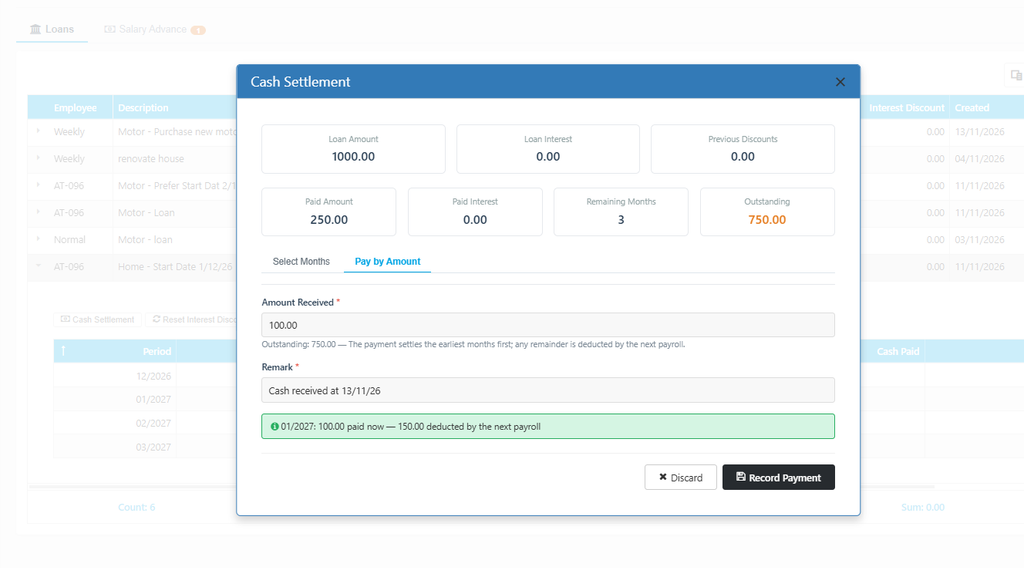
For an amount-based payment, enter the amount received and a remark, review the preview, then select Record Payment. A partial payment is applied to the earliest unpaid month first. Payroll deducts the remaining instalment amount. For example, if an instalment is RM250 and the employee pays RM100 in cash, payroll deducts RM150 for that month.
How employees request a salary advance
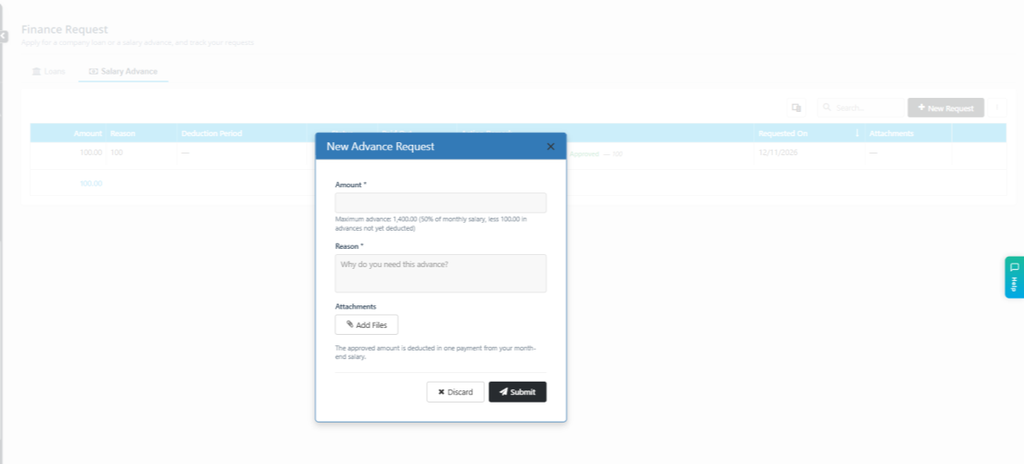
- Go to Finance Request > Salary Advance and select New Request.
- Enter the amount and reason. Supporting files are optional.
- Check the displayed maximum amount, then select Submit.
The maximum request is 50% of monthly salary. An employee cannot submit another advance request while one is pending approval, and only one advance can be deducted in a payroll month.
Process and pay a salary advance
A payroll user can also create an advance on an employee’s behalf. Advances created by payroll users are approved automatically.
- Review employee-submitted requests under Loan & Advance > Salary Advance and select Review. Check the details, add remarks if needed, then approve or reject the request.
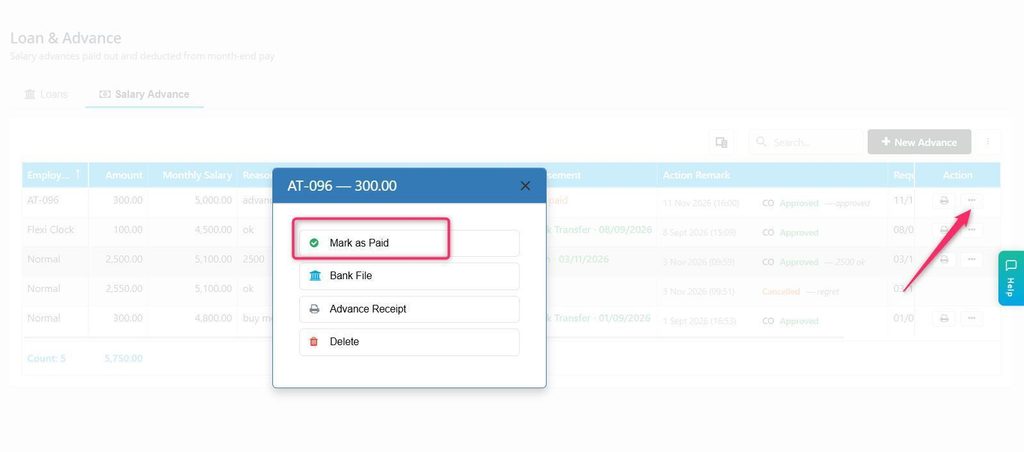
- For an approved advance, open its action menu and select Mark as Paid.
- Choose Bank Transfer or Cash, enter the payment date and select the payroll month for deduction. Add a reference if needed, then save.
- For a bank transfer, generate the bank payment file, select the company bank and upload the file to online banking.
Each employee can have only one salary advance deducted per payroll month. If that month is already assigned to another advance, choose a different deduction period.
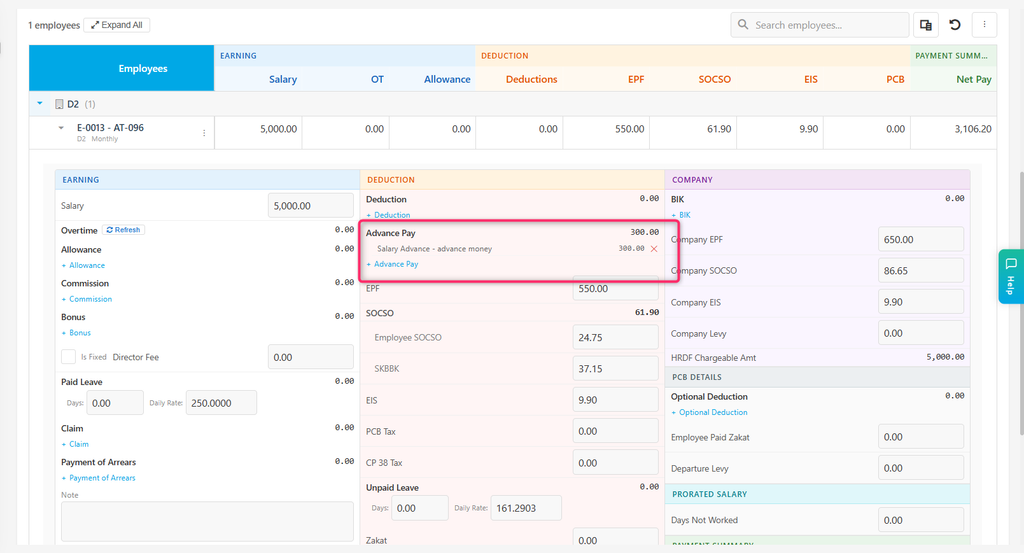
An advance marked as paid appears under Payroll > Adhoc Payroll Items for the selected period. When payroll is processed, the amount is deducted under Deduction > Advance Pay.