How to Reduce Sales Invoice and Stock Errors in AutoCount Accounting v2
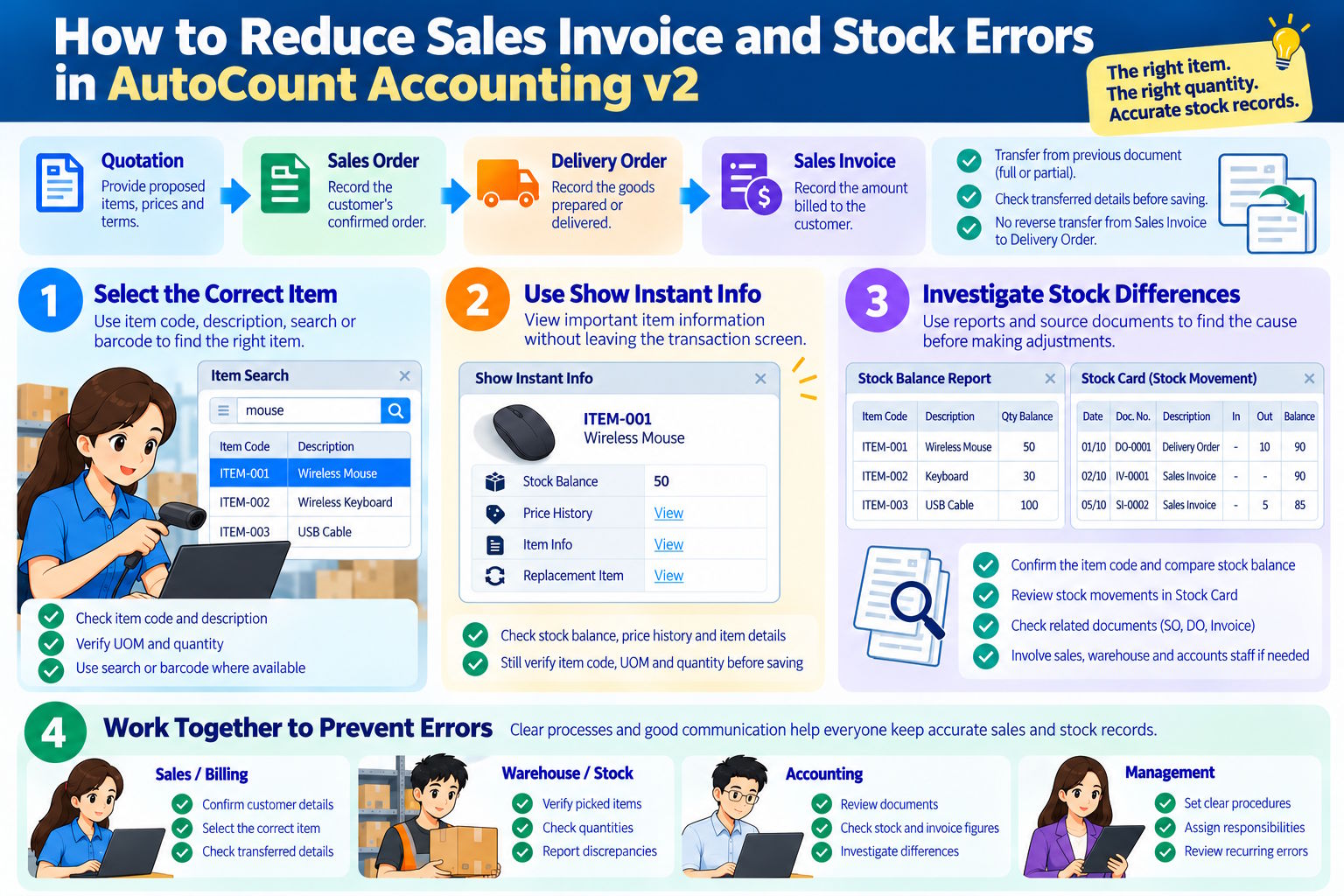
Sales invoice and stock errors can affect customer orders, inventory records and accounting work. Common problems include selecting the wrong item, recording an incorrect quantity and updating stock at the wrong stage of a transaction. AutoCount Accounting v2 provides sales documents and stock reports that help users manage these processes. However, accurate records also depend on following the correct workflow and checking document details before saving. Sales, warehouse and accounting staff can work together to reduce mistakes by understanding how documents are transferred, when stock is updated and how to investigate discrepancies. 1. Understand the Sales Document Workflow A sales transaction may involve several documents: Quotation → Sales Order → Delivery Order → Sales Invoice Not every transaction requires all four documents. Some businesses create a Sales Invoice directly, while others prepare a Delivery Order before invoicing the customer. Each document serves a different purpose: Transfer documents instead of re-entering details AutoCount allows users to transfer details from one sales document to another where the document flow supports it. Depending on the transaction, users may transfer the full document or partial transfer only selected items or quantities. For example, a customer orders 100 units of an item, but only 60 units are available for delivery. The user may transfer the appropriate quantity to the Delivery Order, according to the company’s workflow, and process the remaining quantity later. Document transfer can reduce repeated data entry and help maintain links between related documents. However, staff should still verify the item, quantity, unit of measurement and other details before saving. Important: Document transfer follows a defined direction. AutoCount does not support reversing the transfer direction from a Sales Invoice back to a Delivery Order. If a document has been created incorrectly, users should follow the appropriate correction procedure rather than assume the original transfer can be reversed. 2. Check Item Details Before Saving Selecting the wrong stock item is a common cause of sales and stock errors. Products may have similar descriptions, different packaging or item codes that are easy to confuse. For example, a business sells a wireless mouse and a wireless keyboard. If the wrong item is selected, the sales document may look correct at first glance while recording the wrong product. Before saving, check: Use item search or barcode scanning where available and properly configured. Do not rely on the description alone when several items look similar. Use Show Instant Info to Check Item Information AutoCount Accounting v2 provides Show Instant Info, which lets users view information about a selected item without leaving the transaction screen. Depending on the system setup, it may show stock balance, price history, stock item information and replacement items. To use it, highlight the item and click Show Instant Info. Show Instant Info helps verify item details, but users should still check the item code, UOM and quantity before saving. What About Batch and Serial Number Control? Some businesses need to track stock by batch or by individual serial number. This may be important for products with expiry dates, warranties or unique serial numbers. Batch and serial number control may require an additional module or upgrade option. Confirm the required licence, module and configuration with AutoCount or an authorised dealer before relying on these functions. 3. Understand When Stock Is Updated A sales document does not necessarily reduce stock just because it has been created. Stock movement depends on the document type and the system’s settings. For example, a Delivery Order may be configured to update stock. If a Sales Invoice is subsequently created from that Delivery Order, the invoice should not unintentionally reduce stock a second time. A direct Sales Invoice may behave differently depending on the company’s workflow and configuration. One setting to review is Post to Stock, including any relevant document-control options. Do not assume the setting is identical for every document type or transaction. Before changing stock-related settings, confirm: Practical example: A warehouse user records goods through a Delivery Order. Later, the accounts team creates a Sales Invoice from that Delivery Order. If the Delivery Order has already updated stock, the team should confirm that the invoice does not create a duplicate stock movement under the current setup. The key is to understand the stock effect of each document before making adjustments. Changing settings or entering an adjustment without checking the document flow may create another discrepancy. 4. Investigate Stock Differences When AutoCount stock records do not match the physical quantity, check the reports and source documents before making adjustments. Start by confirming the item code and comparing the stock balance. Then review relevant Sales Orders, Delivery Orders, Sales Invoices and other stock movements. If the cause remains unclear, involve the relevant sales, warehouse and accounts staff to verify the transaction details before correcting the records. Conclusion To reduce sales invoice and stock errors in AutoCount Accounting v2, follow the appropriate document workflow, check item details before saving and understand which documents update stock. Use Show Instant Info for relevant item information, and investigate unresolved differences through the Stock Balance Report, Stock Card and source documents. Most importantly, make accuracy a shared responsibility across sales, warehouse and accounts. Consistent checks and clear procedures can reduce avoidable errors, improve stock records and help prevent customer complaints.