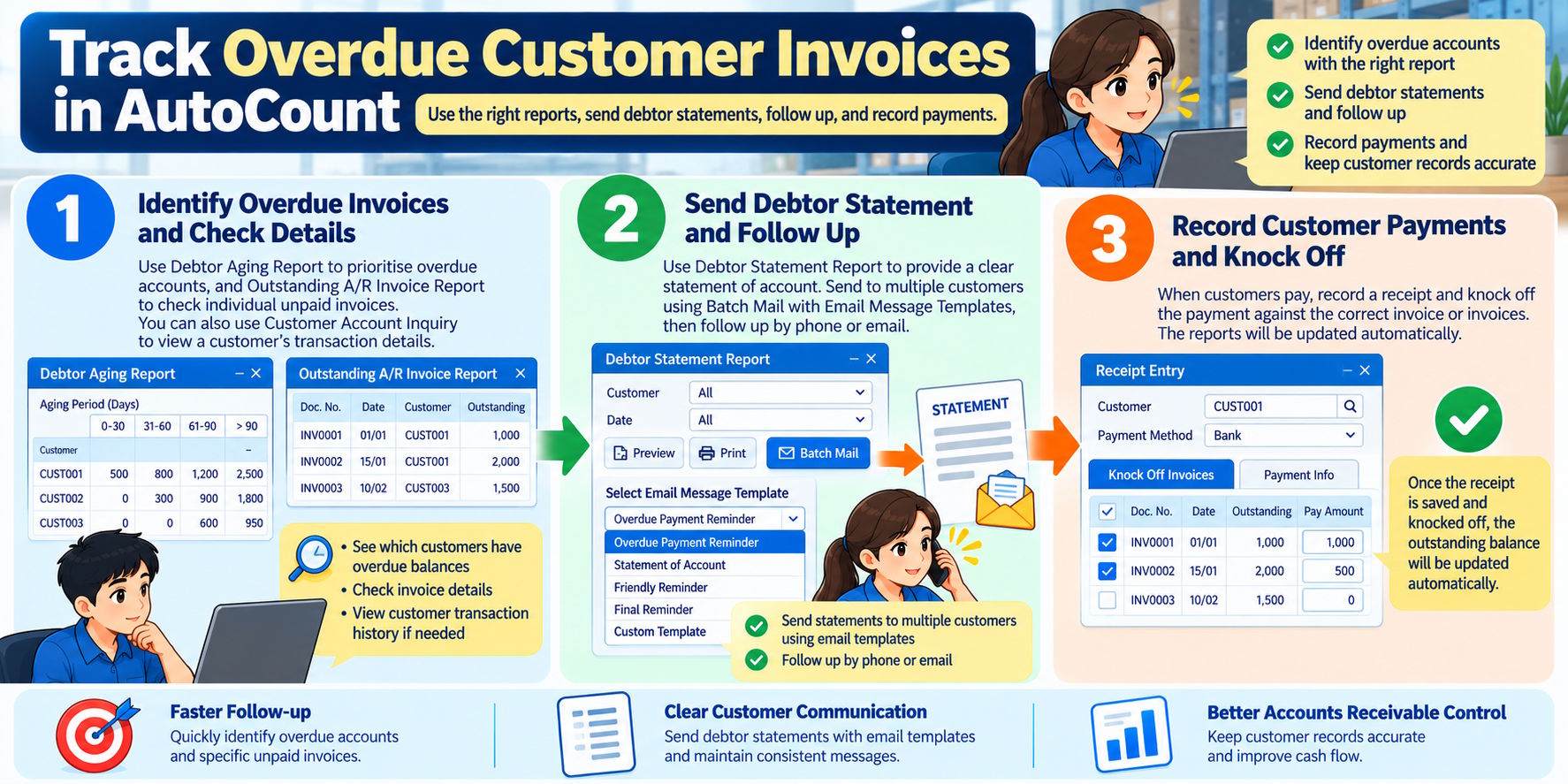
Late customer payments can affect a company’s cash flow. If staff cannot identify overdue invoices quickly, payment follow-ups may be delayed.
AutoCount Accounting v2 provides reports and account inquiry functions to help billing and accounts receivable staff identify overdue balances, review customer transactions, send debtor statements, and record payments.
Step 1: Identify Overdue Invoices and Check Details
AutoCount provides different reports for different purposes.
Debtor Aging Report — prioritise overdue accounts
Use the Debtor Aging Report to see how much customers owe and how long their balances have been outstanding. The report groups outstanding amounts into aging periods based on the report settings.
This helps staff identify accounts with older overdue balances and decide which customers need follow-up first.
Use it when: You need an overview of overdue accounts and want to prioritise payment follow-ups.
Outstanding A/R Invoice Report — check unpaid invoices
Use the Outstanding A/R Invoice Report to review individual invoices that have not been fully settled. It helps staff check invoice numbers, dates, customers, and outstanding amounts, depending on the available report options.
Use it when: You need to identify the specific invoices that remain unpaid.
Practical tip: Start with the Debtor Aging Report to identify accounts that need attention. Then use the Outstanding A/R Invoice Report and customer account details to verify the invoices and balances.
Step 2: Send a Debtor Statement
The Debtor Statement Report provides a summary of a customer’s account transactions over a selected period. It helps customers review invoices, payments, and outstanding balances.
In AutoCount Accounting Desktop, open AR > Debtor Statement Report, select the required date range and debtor or debtors, and generate the statement. Review the details before sending it.
Send statements using Batch Mail
Where supported and configured, the Batch Mail function allows staff to send debtor statements to multiple customers by email.
AutoCount Accounting v2 version 2.2.33.50 introduced support for Email Message Templates in Batch Mail within the Debtor Statement Report. Staff can save frequently used email messages and select a suitable template when sending statements.
Examples include:
- Friendly payment reminder
- Statement of account
- Overdue payment reminder
Templates reduce repeated typing and help staff use consistent wording. Before sending, check the recipient list, email message, statement period, and attachments.
Follow up with the customer
If payment remains outstanding, follow up by phone or email according to your company’s credit policy. Confirm the expected payment date and record the outcome using your normal process.
Step 3: Record Customer Payments Correctly
After receiving payment, record it using the appropriate A/R Receive Payment function and knock off the receipt against the correct invoice or invoices.
Correct allocation helps ensure that outstanding balances reflect the customer’s payment accurately. If a receipt is recorded but not matched to the relevant invoice, the invoice may continue to appear outstanding.
After saving the receipt and completing the allocation, run the relevant report again to confirm that the outstanding balance has been updated correctly. If the balance is still incorrect, check the invoice, receipt, and knock-off details.
Conclusion
Tracking overdue customer invoices is easier when each AutoCount function is used for the right purpose.
Use the Debtor Aging Report to prioritise overdue accounts, the Outstanding A/R Invoice Report to check individual unpaid invoices, and customer account inquiry to verify transaction details. Send debtor statements and follow up when necessary, then record and allocate payments after they are received.
A consistent process helps staff maintain accurate customer records, reduce missed follow-ups, and manage accounts receivable more effectively.