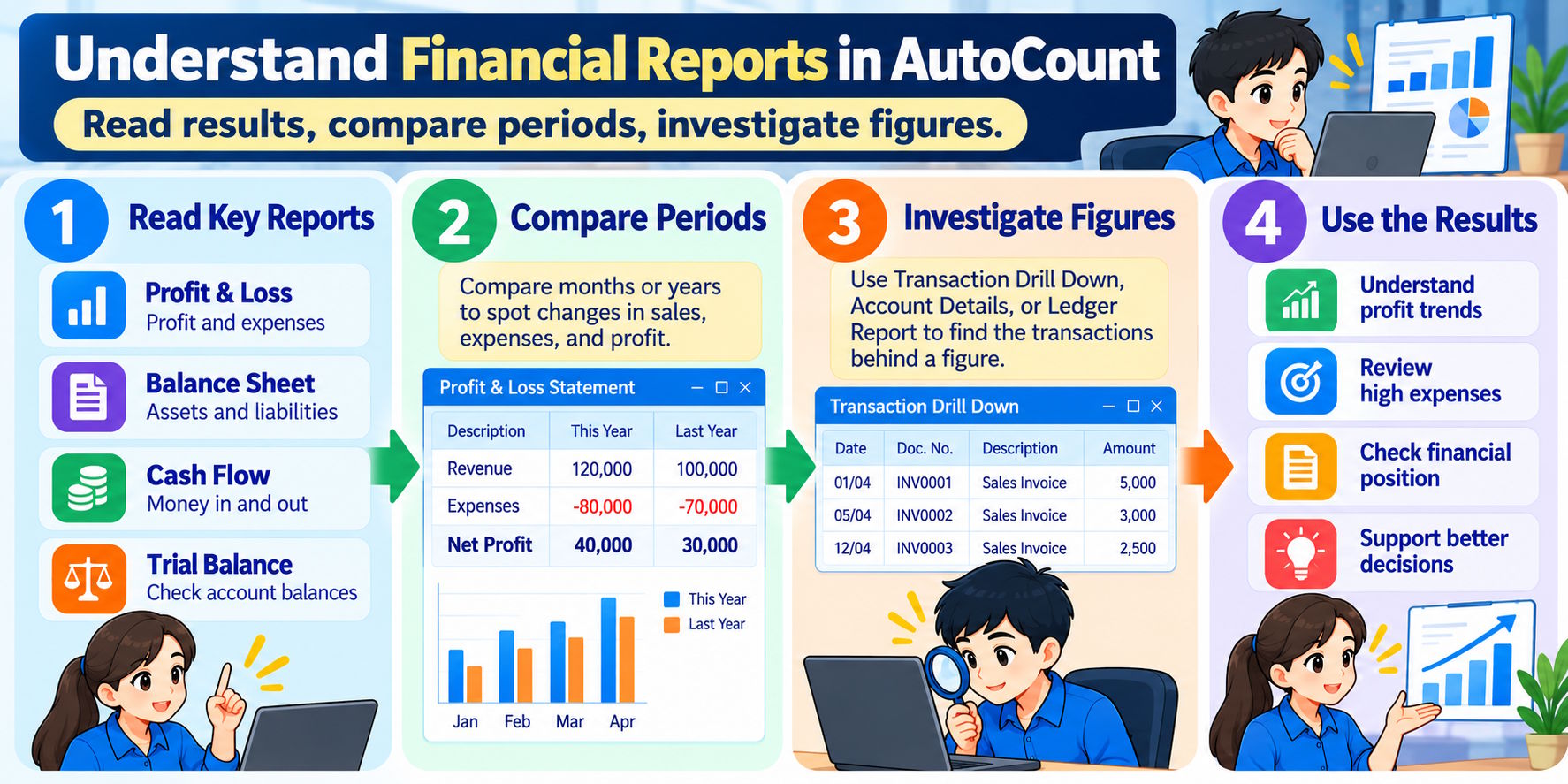
Financial reports help business owners, accountants and managers understand how a business is performing. However, reading the figures alone is not enough. You also need to understand what the figures mean, identify changes and investigate unusual amounts.
AutoCount Accounting provides financial reports that help users review income, expenses, account balances and business performance. By learning how to read these reports and trace figures back to their transactions, you can make better-informed business decisions.
Note: Financial Report Names in AutoCount
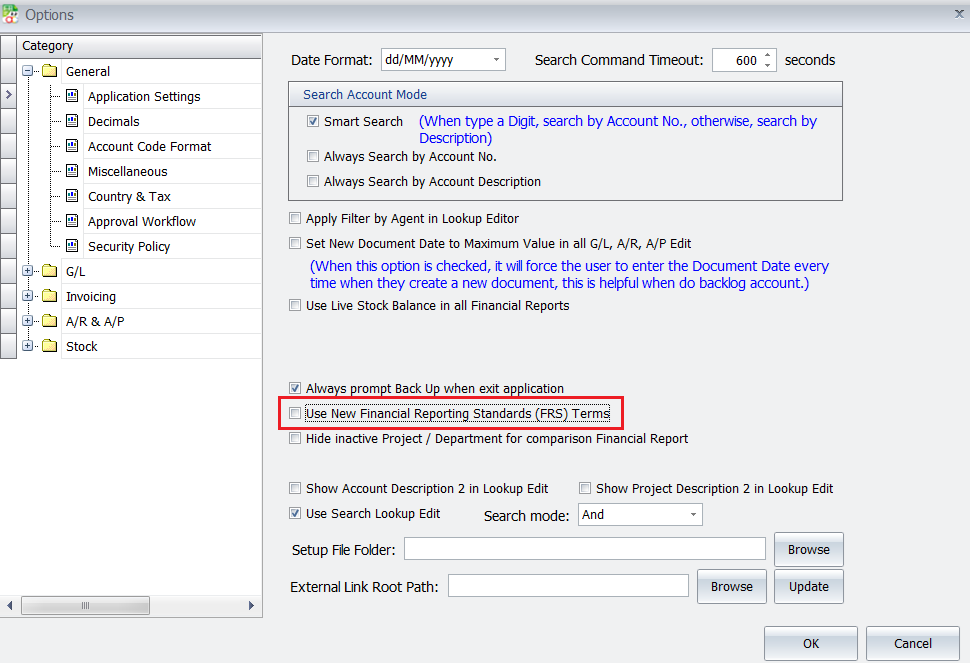
AutoCount can use new financial reporting standards (FRS) terminology:
- Profit & Loss may appear as Statement of Comprehensive Income.
- Balance Sheet may appear as Statement of Financial Position.
To use the traditional terms, go to Tools → Options and uncheck Use new financial reporting standards (FRS) terms. Available options may vary by version or configuration.
1. Understand the Main Financial Reports
Different reports answer different questions. Start by understanding what each report tells you.
Profit & Loss Statement
The Profit & Loss Statement, also known as the Statement of Comprehensive Income when FRS terminology is enabled, shows income and expenses over a selected period. It helps you understand whether the business made a profit or loss.
For example, a simplified monthly report may show:
| Item | Amount |
|---|---|
| Sales revenue | RM100,000 |
| Cost of sales | RM55,000 |
| Operating expenses | RM27,000 |
| Net profit | RM18,000 |
These illustrative figures show RM18,000 in net profit after deducting the listed costs and expenses.
Higher sales do not always mean higher profit. If expenses increase faster than revenue, the business may earn less profit even when sales improve.
Balance Sheet
The Balance Sheet, also known as the Statement of Financial Position when FRS terminology is enabled, shows the business’s financial position at a specific date. It includes assets, liabilities and equity.
For example, a business has RM150,000 in assets and RM60,000 in liabilities. If these figures are complete and correctly classified, the difference is RM90,000 in equity.
This report helps management understand what the business owns, what it owes and its financial position at that point in time.
Cash Flow Statement
The Cash Flow Statement shows cash inflows and outflows over a period. It helps you understand how cash moves into and out of the business.
A business may report a profit but still face cash flow pressure because customers have not paid their invoices or because large payments are due.
Profit and cash flow are different measures. Reviewing both gives you a clearer picture of business performance. Cash Flow Statement availability may depend on your AutoCount edition and installed modules.
Trial Balance Report
The Trial Balance Report lists general ledger account balances. It helps users review account figures and identify balances that may need further investigation.
However, a balanced trial balance does not guarantee that every transaction is correct or that all transactions have been recorded. Further checks may still be needed.
2. Compare Financial Results Between Periods
Reading one report gives you a snapshot of performance. Comparing reports from different periods helps you identify trends and changes.
For example, consider these monthly results:
| Item | Previous Month | Current Month |
|---|---|---|
| Revenue | RM90,000 | RM100,000 |
| Expenses | RM70,000 | RM82,000 |
| Net profit | RM20,000 | RM18,000 |
Revenue increased by RM10,000, but expenses increased by RM12,000. As a result, net profit decreased by RM2,000.
This shows why you should review revenue and expenses together. Although sales improved, the business earned less profit.
When reviewing reports in AutoCount, select the correct reporting period. Where the report and available settings allow, compare monthly or yearly results to identify significant changes.
Ask these questions when comparing periods:
- Did sales increase or decrease?
- Which expenses changed the most?
- Did profit improve at the same rate as revenue?
- Are the changes expected for the business?
- Is there an unusual amount that needs checking?
These questions help turn financial figures into useful information.
3. Investigate Unusual Figures
If a figure looks unusual, do not assume it is correct or incorrect immediately. Investigate the details before drawing a conclusion.
AutoCount Accounting provides report and transaction-viewing functions that can help you trace figures to individual entries and source documents, depending on the report used.
Example: Office Expenses Increased
Suppose office expenses were RM4,000 last month but increased to RM9,000 this month.
The increase is RM5,000. Before deciding that spending is too high, find out what caused the change.
You can:
- Open the relevant report and confirm the date range.
- Review the office expense account and its transaction details.
- Use Transaction Drill Down, where supported, to inspect the entries making up the amount.
- Open the relevant source document to check the transaction details.
- Confirm whether the expense belongs to the correct account and period.
The investigation may reveal a one-off equipment repair, an annual service payment or a transaction recorded under the wrong account. Each situation requires a different response.
Use the Ledger Report and Account Details
The Ledger Report helps you review transactions for selected accounts and date ranges. It can help explain how an account balance was formed.
The Account Details Report can also help you examine account-related information, depending on the report options available in your setup.
For example, if supplier-related expenses appear higher than expected, review the relevant account details and transactions to identify which entries caused the increase.
You can also export report data to Excel when you need to sort, filter or compare figures in more detail. Refer to the accounting records and source documents before deciding whether an entry needs correction.
4. Check Whether the Figures Are Reliable
Understanding a report also means checking whether the figures are based on complete and appropriate records.
For example, the Profit & Loss Statement shows a profit of RM18,000. Before relying on that figure, consider whether the relevant transactions have been recorded correctly.
Useful checks include:
- Confirm that the report uses the intended date range.
- Check whether relevant sales and purchase transactions have been entered.
- Review unusual or unexpected account balances.
- Investigate large or unfamiliar transactions.
- Check source documents when a transaction needs verification.
- Review the Trial Balance and relevant ledger details as part of your checks.
Example: A Missing Supplier Invoice
A business owner notices that this month’s expenses seem unusually low. After checking the records, the accountant discovers that a supplier invoice for the period has not been entered.
The reported profit may therefore be higher than expected because the expense has not been recorded. The accountant should verify the invoice and record it in the appropriate period according to the business’s accounting procedures. The report can then be regenerated and reviewed.
This example shows why reports should be checked against the underlying accounting records. A report reflects the information recorded and the criteria used to generate it.
5. Use Financial Reports to Support Business Decisions
After understanding the reports and investigating unusual figures, you can use the information to support business decisions.
- Review profitability: Check whether changes in revenue and expenses are affecting profit.
- Control expenses: Investigate accounts with significant or unexpected increases.
- Assess financial position: Use the Balance Sheet to review assets, liabilities and equity.
- Monitor cash movement: Review cash flow information alongside profit to understand possible cash pressure.
- Improve record quality: Follow up on missing, duplicated, incorrectly classified or unexpected entries.
For example, if revenue has increased for several months but profit continues to fall, management can investigate rising costs and review pricing or spending decisions. The reports provide information for that investigation, but the final decision should also consider the business’s circumstances.
Conclusion
Understanding financial reports involves more than reading the final profit figure. You need to know what each report measures, compare results between periods and investigate unusual amounts.
AutoCount Accounting provides reports and transaction-viewing functions that can help users review account figures and trace transactions. By checking report settings, reviewing account details and referring to source documents when necessary, you can build a clearer picture of business performance.
The key is to read the figures, understand the changes and verify the details before making important decisions.