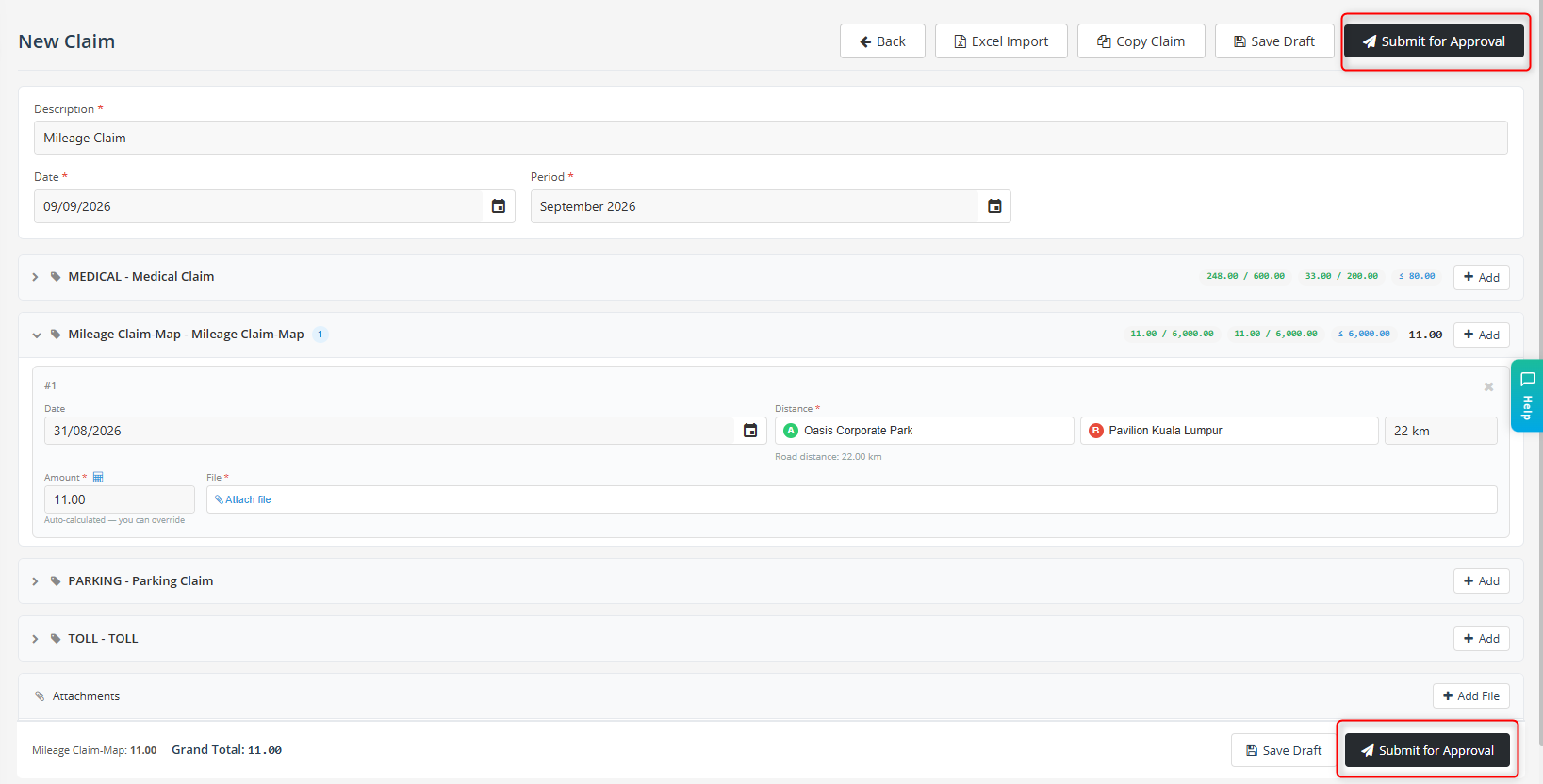
AutoCount HRMS Distance Claim lets employees calculate mileage by selecting a starting point and destination. HR configures the claim type and reimbursement formula first. When an employee submits a claim, HRMS calculates the route distance and claim amount automatically.
Availability: The Distance Claim feature is currently available on the web version of AutoCount HRMS. The source guide says it is not yet available in the mobile app.
Set up a Distance Claim type
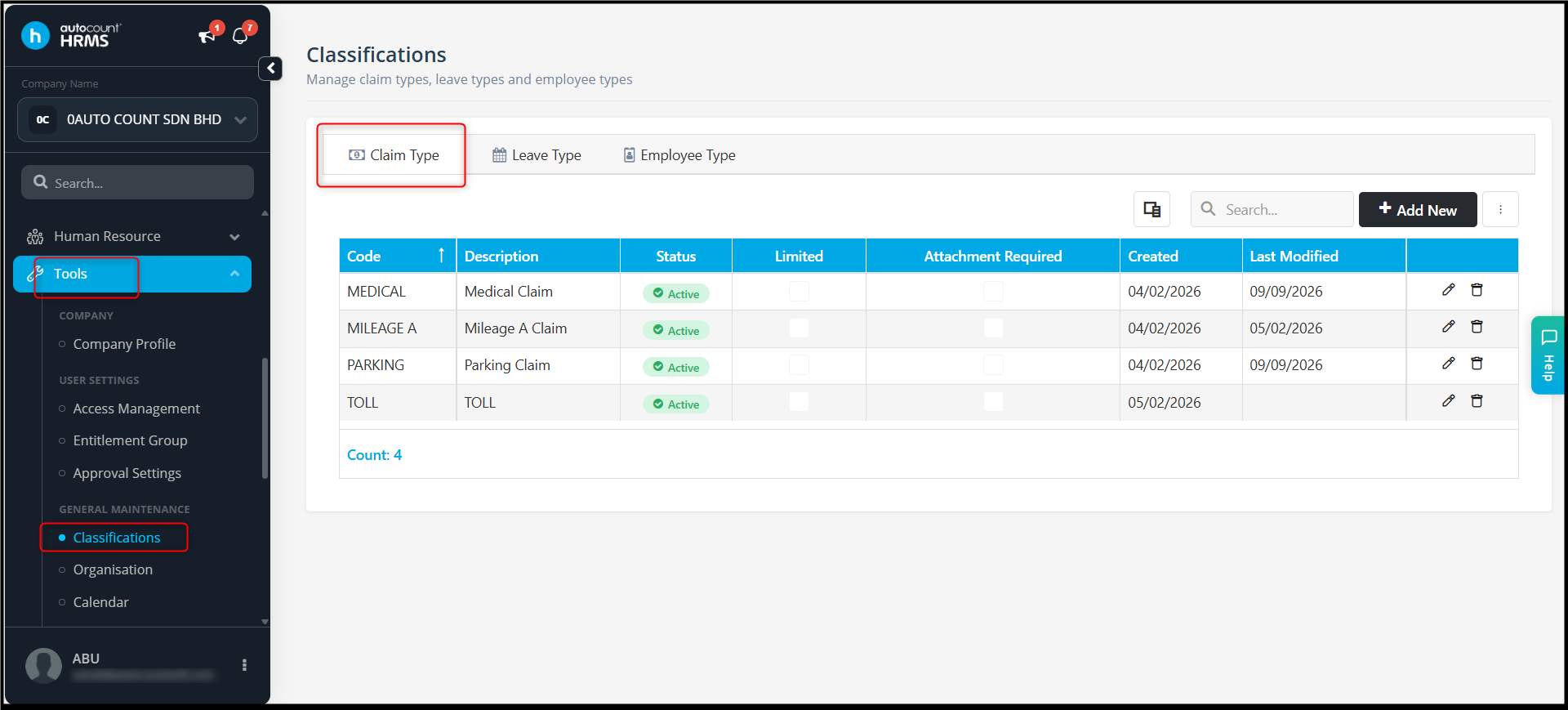
Go to Tools > Classifications > Claim Type, then select Add New or edit an existing claim type.
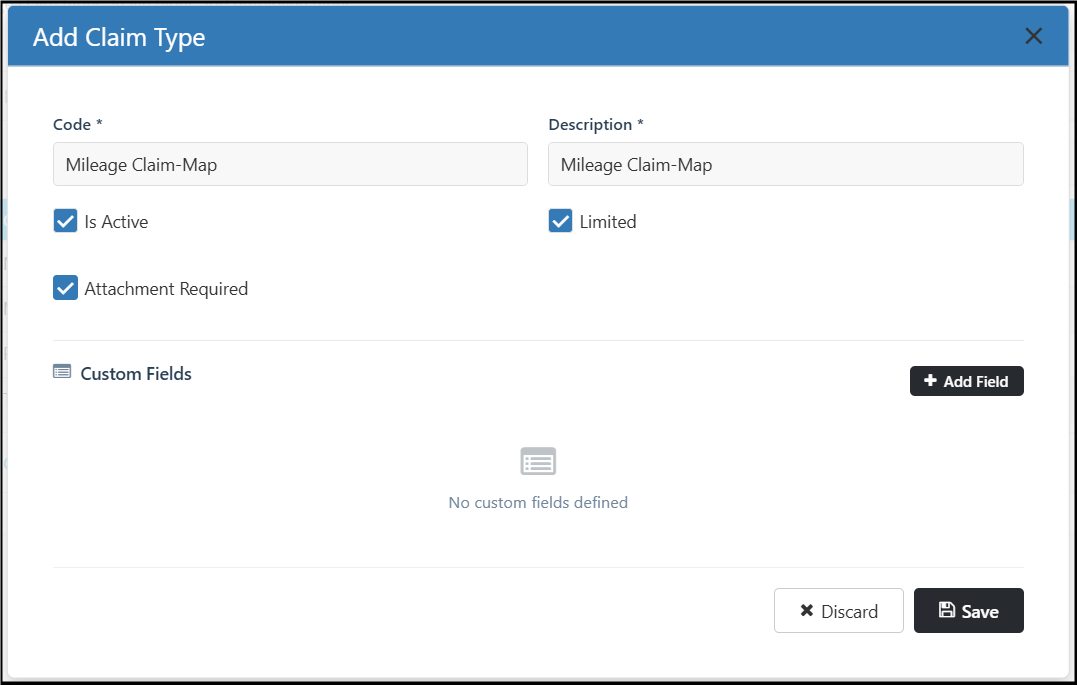
Enter a code and description, such as “Mileage Claim – Map”. Enable the claim type and configure any claim limit or attachment requirement that applies to your policy.
Add the date and distance fields
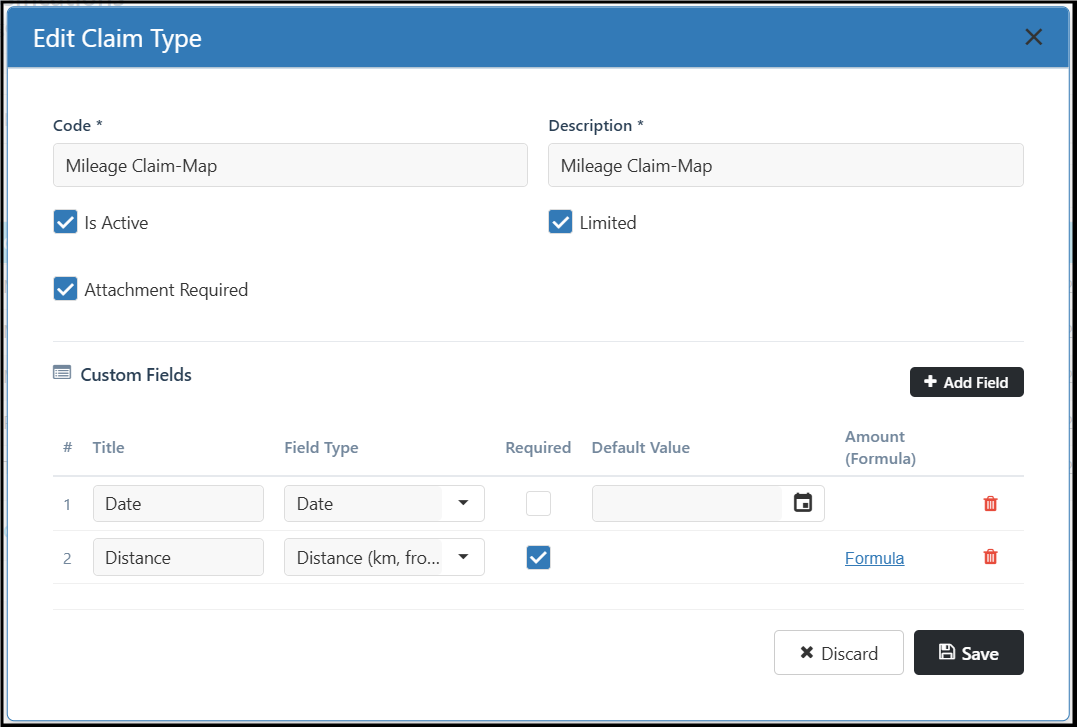
Under Custom Fields, select Add Field and create these fields:
- Date: Choose the Date field type. Mark it required if employees must provide the travel date.
- Distance: Choose the Distance field type (km, from …). Mark it required if mileage is mandatory.
The Distance field lets the employee select two locations, then calculates the distance between them.
Set the reimbursement formula
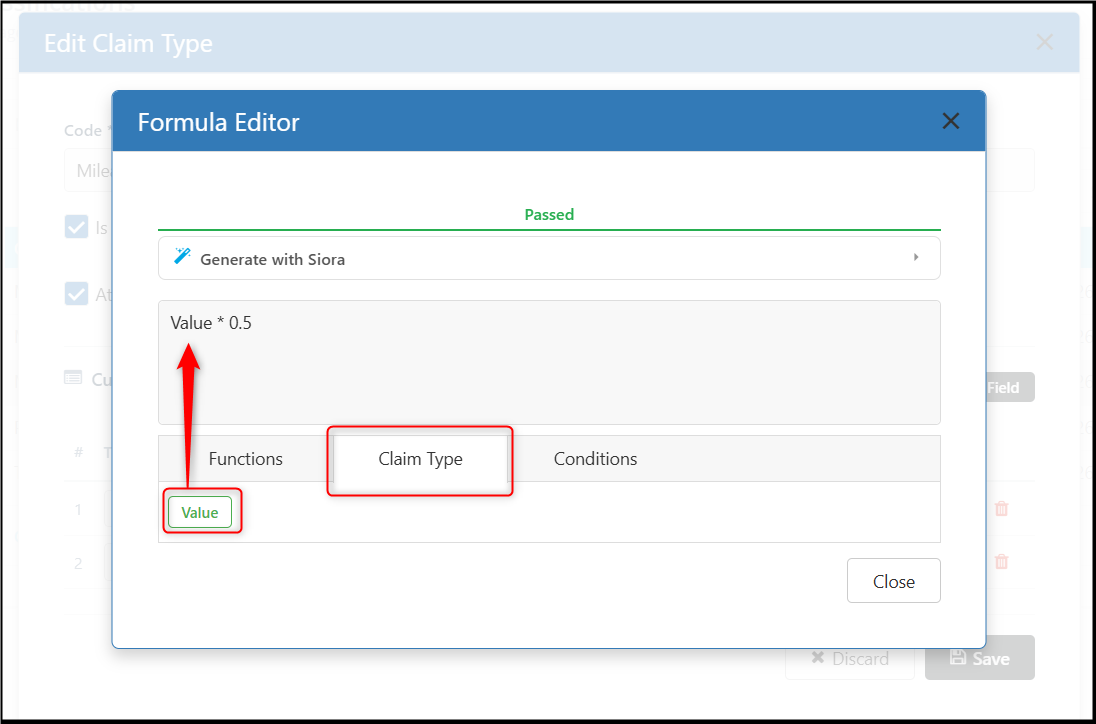
In Amount (Formula), select Edit Formula. Set the formula to calculate the claim from the distance. For example, at RM0.50 per kilometre:
Value (Claim Type) × 0.50
Assign the claim type to an entitlement group
Employees need the Distance Claim type in their entitlement group before they can use it.
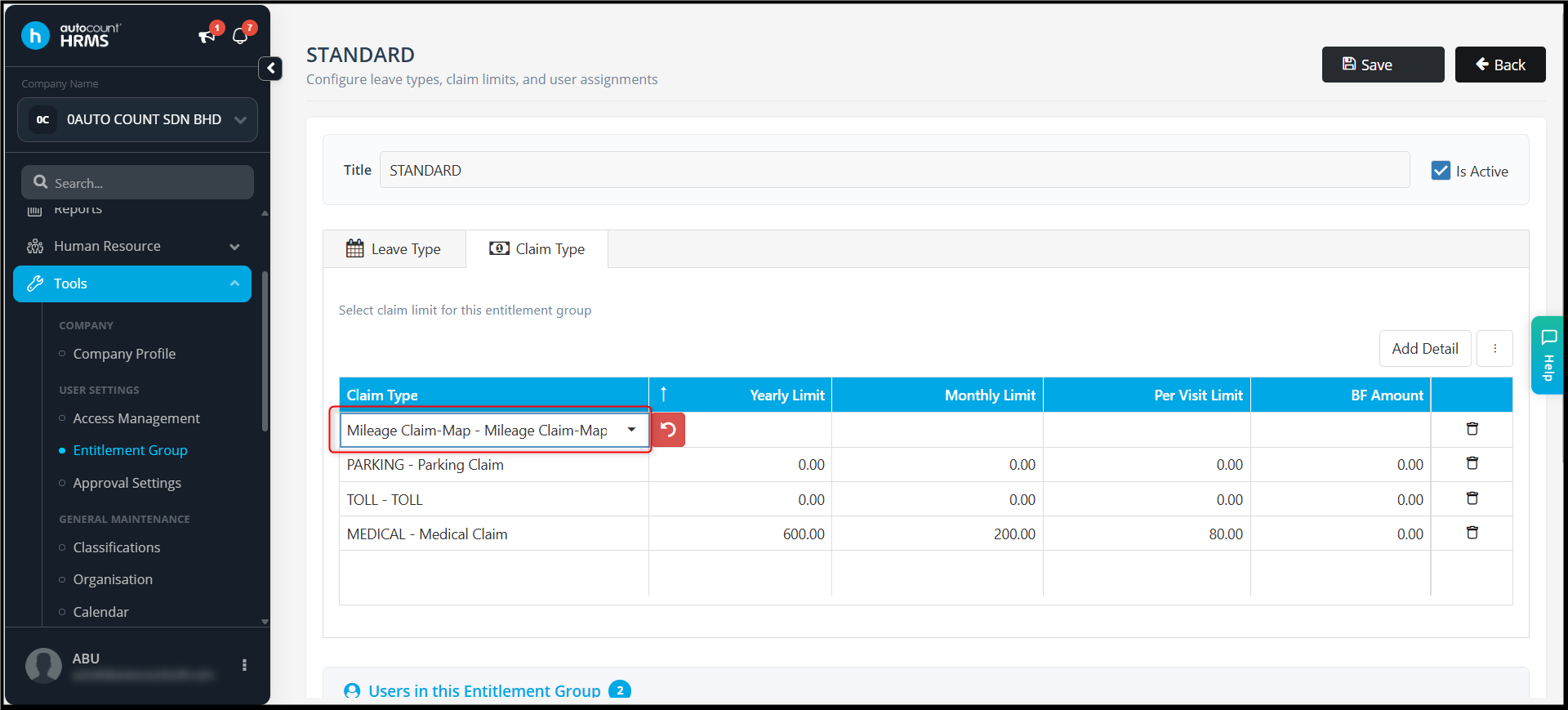
- Go to Tools > Entitlement Group and open the relevant group.
- Open the Claim Type tab and select Add Detail.
- Select the Distance Claim type.
- Set any applicable claim limits and confirm the relevant employees belong to the group.
- Select Save.
Submit a Distance Claim
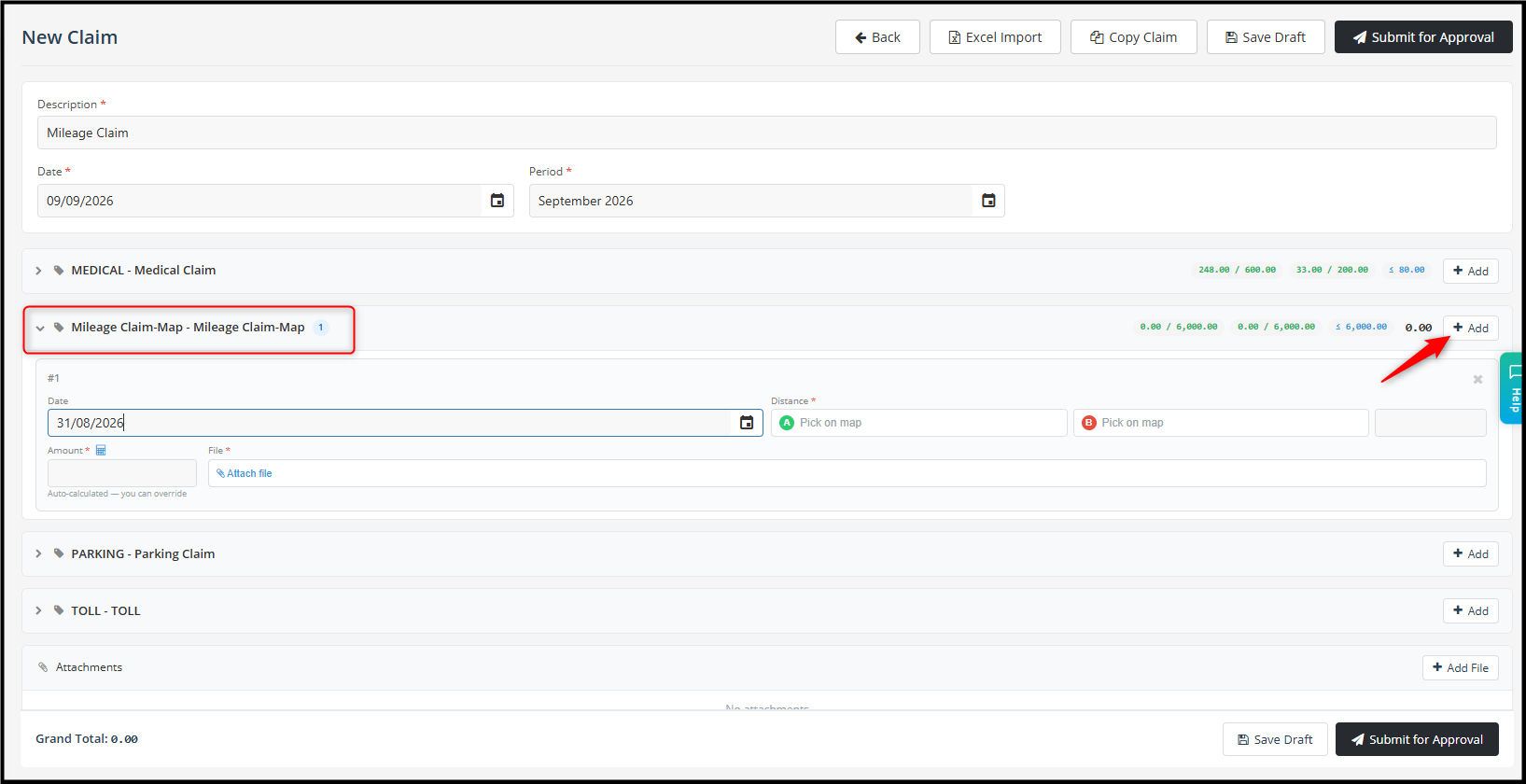
- Open Submit Claim, start a new claim and select the Distance Claim type.
- Enter the required claim information, including the date.
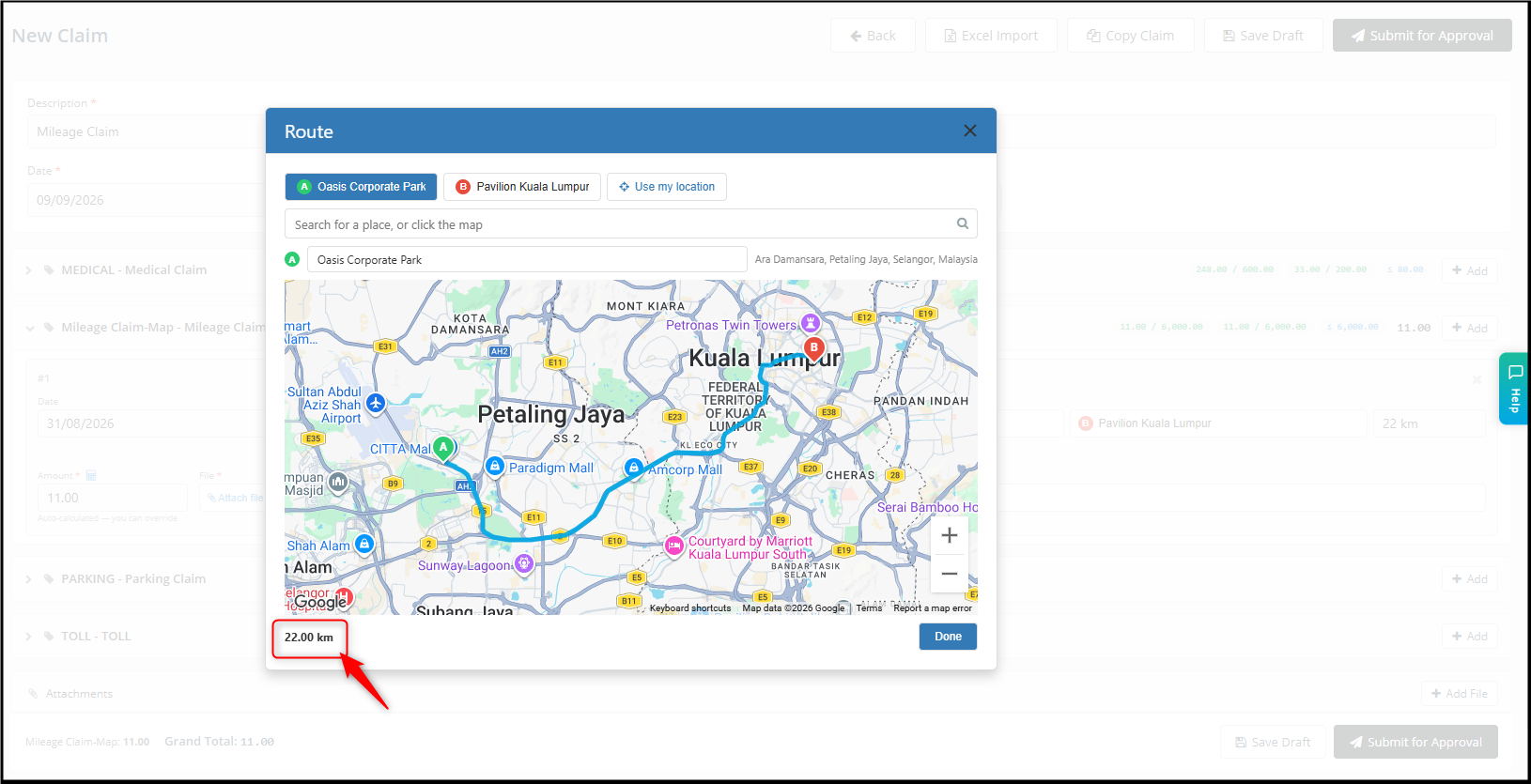
- In the Distance field, choose how to enter each location: Pick on map, Search for a place or Use my location.
- Select Point A as the starting location and Point B as the destination.
- Review the calculated distance and claim amount, then select Done.
- Check the claim details and select Submit for Approval.

Review the mileage and amount
After both locations are selected, HRMS calculates the distance and fills it into the claim. The claim amount follows the formula set up for the claim type.
For example, a 22 km trip at RM0.50 per kilometre gives a claim amount of RM11.00.
Employees can adjust the calculated distance if the actual travel distance differs. The approver can review the adjusted mileage before approving the claim.