Keeping employee records accurate used to mean chasing HR with forms and emails just to update a phone number or bank account. Not anymore.
AutoCount HRMS Payroll ESS (Employee Self Service) has introduced a new Employee Profile Update feature, allowing employees to request changes to their own personal information directly — no more back-and-forth paperwork. Available on both the Web Portal and the AutoCount HRMS Mobile App, this new function puts control back in employees’ hands while keeping HR fully in the loop for approval.
Here’s everything you need to know.
What Can Employees Update?
Employees can now submit update requests for three key areas:
1. Personal Profile
- Disability status (OKU)
- Mobile number
- Email address
- Passport number and expiry date
- Address
- Marital status
- Emergency contact name, number, and relationship
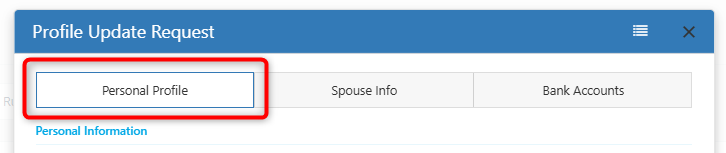
2. Spouse Information
- Name and IC number
- Address, phone, and mobile number
- Spouse’s working status
- Spouse’s tax number
3. Bank Account Information
- Bank name, account number, and state
Once a bank account update is approved, it automatically becomes the employee’s Main Bank Account — no extra steps needed. For security, only the last few digits of an account number are shown, and beneficiary name and IC number are read-only reference fields.
Note: Employees must have at least one existing Main Bank Account in the system before they can request a bank account change.
Quick Guide: How to Submit a Request
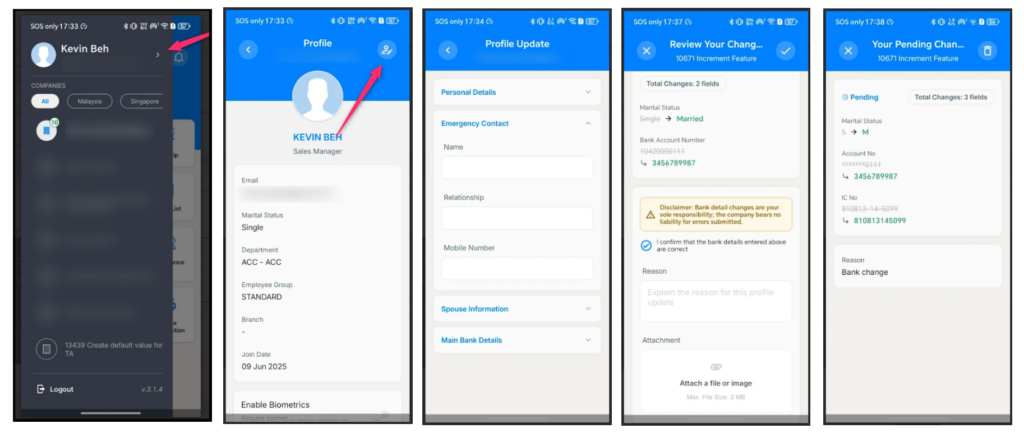
Option A — Using the AutoCount HRMS Mobile App
- Tap the menu and select your employee name.
- Tap the Update Profile icon (top right).
- Edit the relevant tab (Personal, Spouse, or Bank).
- Review your changes.
- Tap Submit ✓ to send it for approval — or tap X to cancel.
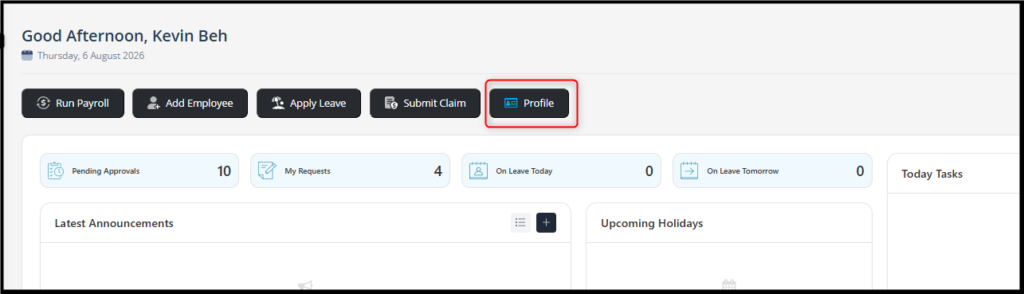
Option B — Using the Web Portal
- Go to Employee Self Service Dashboard > Profile.
- Edit the relevant tab.
- Review your changes.
- Click Submit — or Discard to cancel.
Before submitting, employees will see a Review Changes screen comparing “Current” vs. “Updated” info, and must:
- Provide a reason for the update
- Acknowledge a disclaimer (for bank account changes)
- Optionally attach supporting documents
The request then goes to Pending Approval status until reviewed.
What Happens Next: The Approval Process
Once submitted, the request lands with the Payroll User (Approver) — but only those with Authorised Employee Group access can review it.
Approvers can act on requests in two ways:
- Via the Web Portal
- Directly from the approval email
📌 Approval is not supported in the mobile app — approvers must use the web or email.
- ✅ Approved: The employee’s profile updates automatically. If it’s a bank account change, the new account becomes the Main Bank Account at 100% allocation.
- ❌ Rejected: No changes are applied. The employee can submit a new request if needed.
Once a request is approved or rejected, it cannot be cancelled — a fresh request is needed for further changes.
A Few Things to Keep in Mind
- Employees must update their AutoCount HRMS Mobile App to the latest version to access this feature.
- This feature is not available in Classic View.
- Only authorised Payroll Users can approve or reject requests.
Summary Update
This feature cuts down manual admin work, reduces data-entry errors, and gives employees more ownership over keeping their own records accurate — while HR retains full approval control. It’s a small change that saves real time for both employees and payroll teams.